How to check controller battery level and health
A charge indicator estimates energy remaining now. To investigate battery wear, compare runtime across repeated sessions with the same settings.
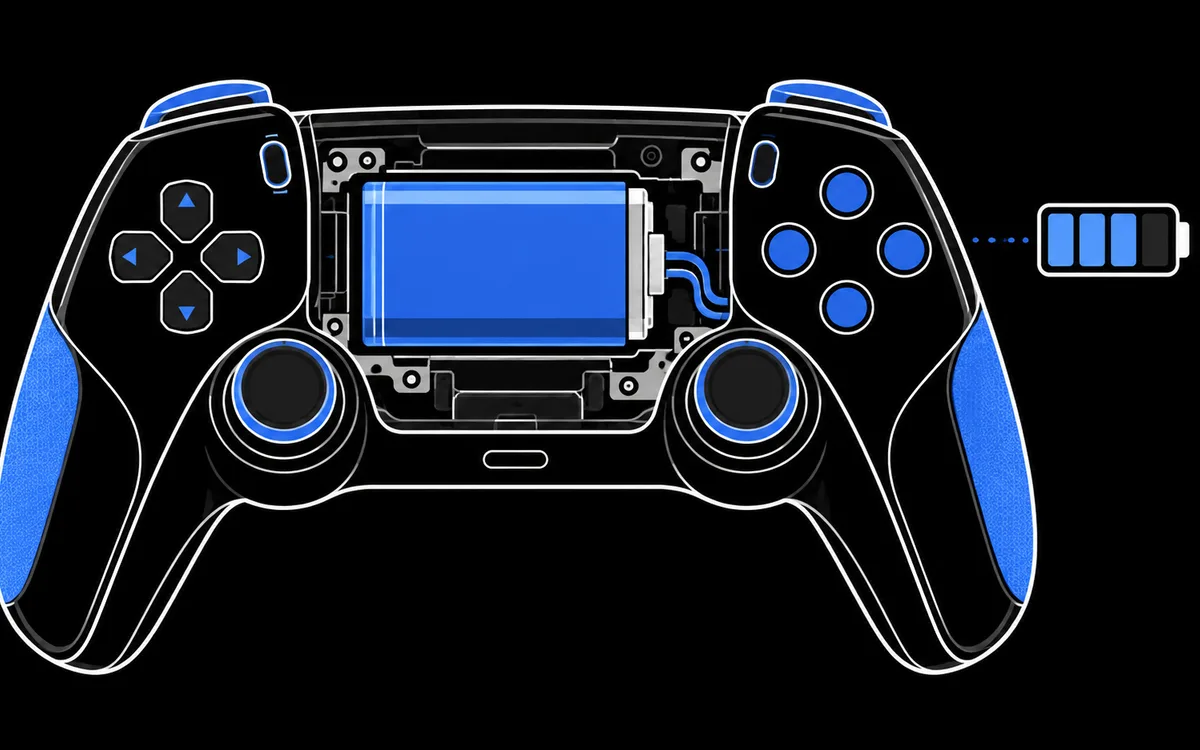
Charge level is not battery health
The battery tool reads the charge estimate reported by supported PlayStation controllers. It does not measure remaining capacity in mAh, cycle count, internal resistance or a battery-health percentage. A full icon means charged according to the controller, not that the battery retains its original capacity.
There is no reliable universal hours-per-charge or steps-per-hour threshold across different games, settings and hardware revisions. Compare repeated sessions under the same conditions instead.
Where to check charge
- DualSense and DualShock 4 on this site: use desktop Chrome or Edge, connect with a data cable or Bluetooth, open the battery tool and grant WebHID access. Supported full reports contain the charge data; simple Bluetooth reports do not. If the reading is missing, try USB and close applications holding the device.
- DualSense on Windows: Sony's PlayStation Accessories app includes a battery indicator.
- On a PS5: open the control centre with the PS button and select Accessories to see the controller battery level. The battery icon animates while charging.
- Other controller families: this site's battery decoder does not support Xbox or Nintendo reports. Check the console or a compatible manufacturer tool. The standard Gamepad API does not define a battery field; that does not mean every possible web API is unable to read one.
Why the percentage moves in steps
Our Sony decoder converts coarse reported levels into estimates such as 75%, 85% or 95%, following the report layouts in the Linux driver. DualSense and DualShock 4 have different charging-status encodings. Full, charging, unknown and charging-error states also need separate handling.
These numbers are not laboratory measurements of state of charge. A ten-point change cannot establish exactly how much energy was used, and other applications may display the same raw level differently.
A useful check at home
- Charge normally and note the indicated level.
- Play the same game with the same vibration, trigger, light and wireless settings.
- Record the time until a low-battery warning or shutdown. Repeat on another session.
- Compare with your own earlier results under similar conditions, not a universal hours-per-charge figure.
Repeated short runtime is a reason to investigate. Also check the cable, charging source, port and wireless link before blaming the cell. Working only over USB can indicate a battery problem, but can also be a pairing or charging fault. It does not by itself prove replacement is necessary.
Sources
Checked 26 October 2026. The battery conversion above describes this site's implementation; no physical capacity test was performed.