The gamepad tester that
shows you every input
Press any button on an Xbox, PlayStation, Switch or PC controller. Live sticks, triggers, rumble and drift numbers appear right here, with nothing to install.
Input map
Sticks
Raw input
Axes
Rumble
Device passport
Connect a controller to start its history on this device.
How to connect your controller
Pick the way your controller connects. Every method ends the same way: come back to this page and press any button.
 01
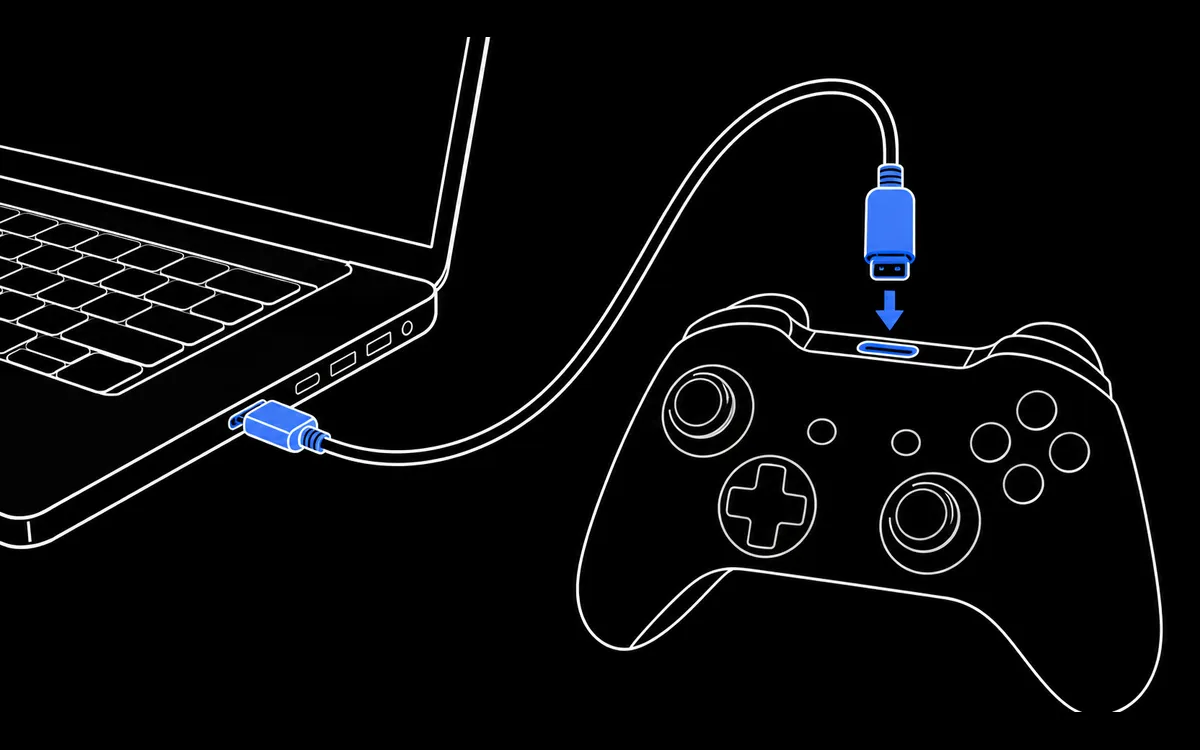
01Use a cable that carries data
Plug the controller into a USB port on the computer, not into a monitor or keyboard. Many cheap cables only charge; if nothing happens, try the cable that came with the controller.
 02
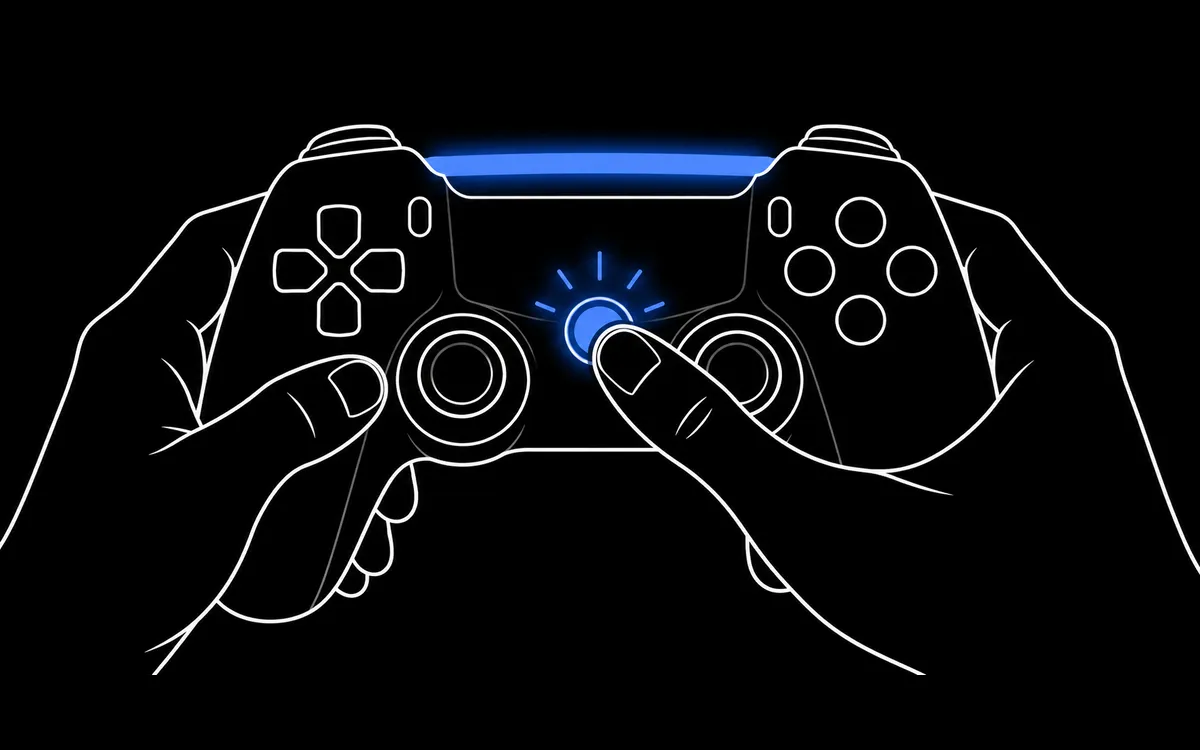
02Turn the controller on
Press the PS, Xbox or Home button in the middle of the controller. Its light should come on.
 03
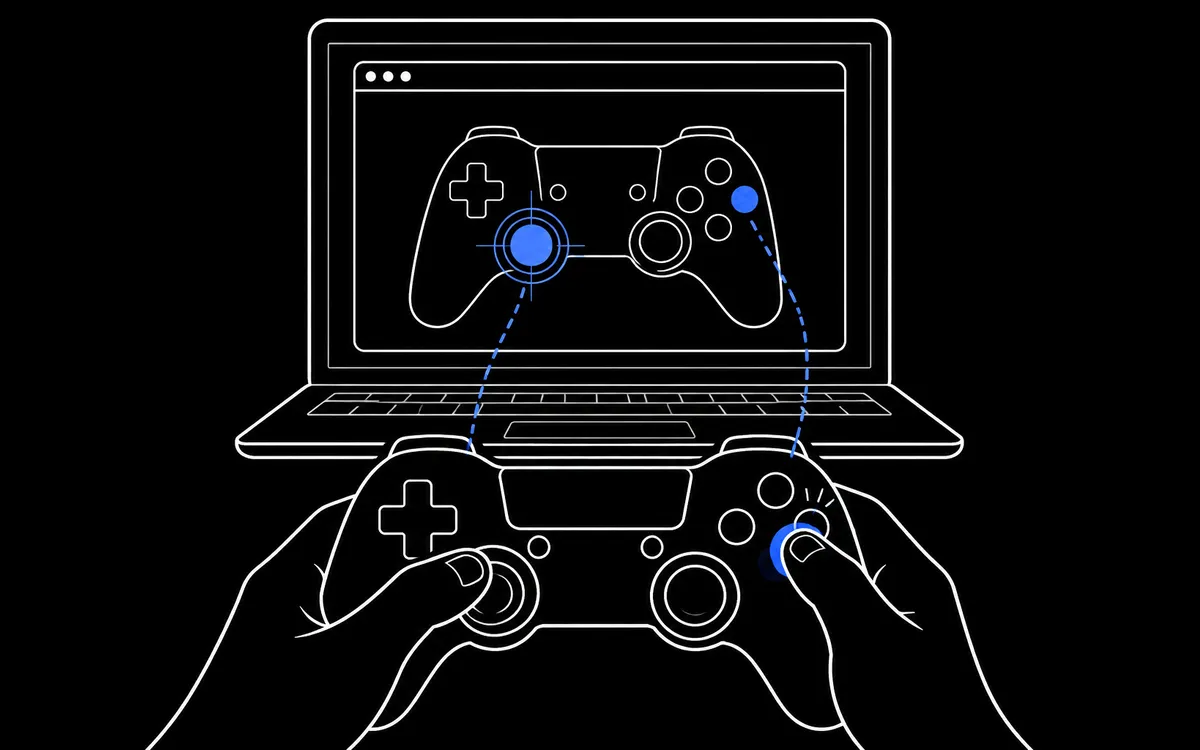
03Last step: press any button here
Browsers hide controllers until you press something while this page is open. Press a face button and the test bench above lights up.
What you can check in under a minute
Drift you can put a number on
A three second hold test reports the exact resting offset and noise of each stick, plus the smallest deadzone that hides it.
Stick drift testerAim that tracks your thumb
Sweep from center to edge and get linearity, tremor and step resolution scores, the part of stick travel where aiming actually happens.
Linearity & precisionBattery, light bar and rumble
Read the charge level of a DualSense or DualShock 4, light its LEDs and run each rumble motor on its own, straight from the browser.
Battery & light barCalibration without the risk
A seven step wizard builds a correction profile from your stick center and range. Nothing is written to the controller, so nothing can break.
Calibration wizardDrift, tired motors and sticky buttons all leave a trace in the numbers. We put those numbers in front of you.
When a controller test helps
Most people open a tester for one of these reasons.
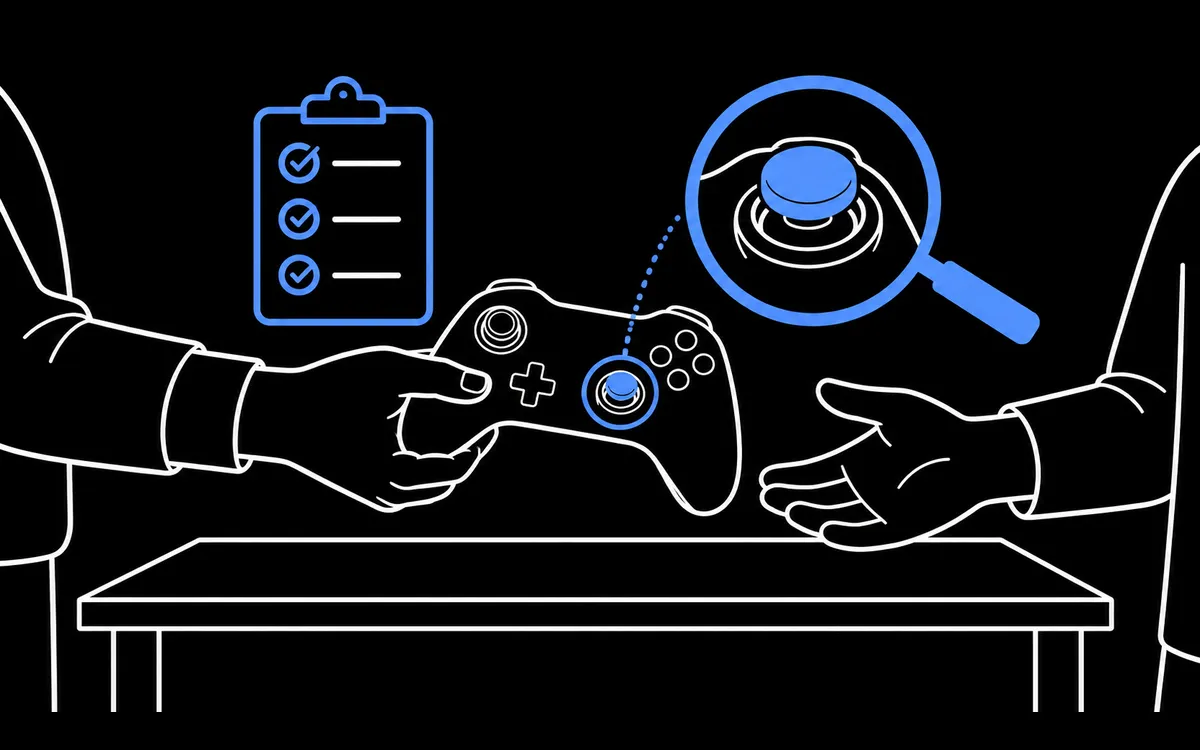 Buying a used controllerCheck every button, both sticks and both motors before you pay. Two minutes here can save a return.
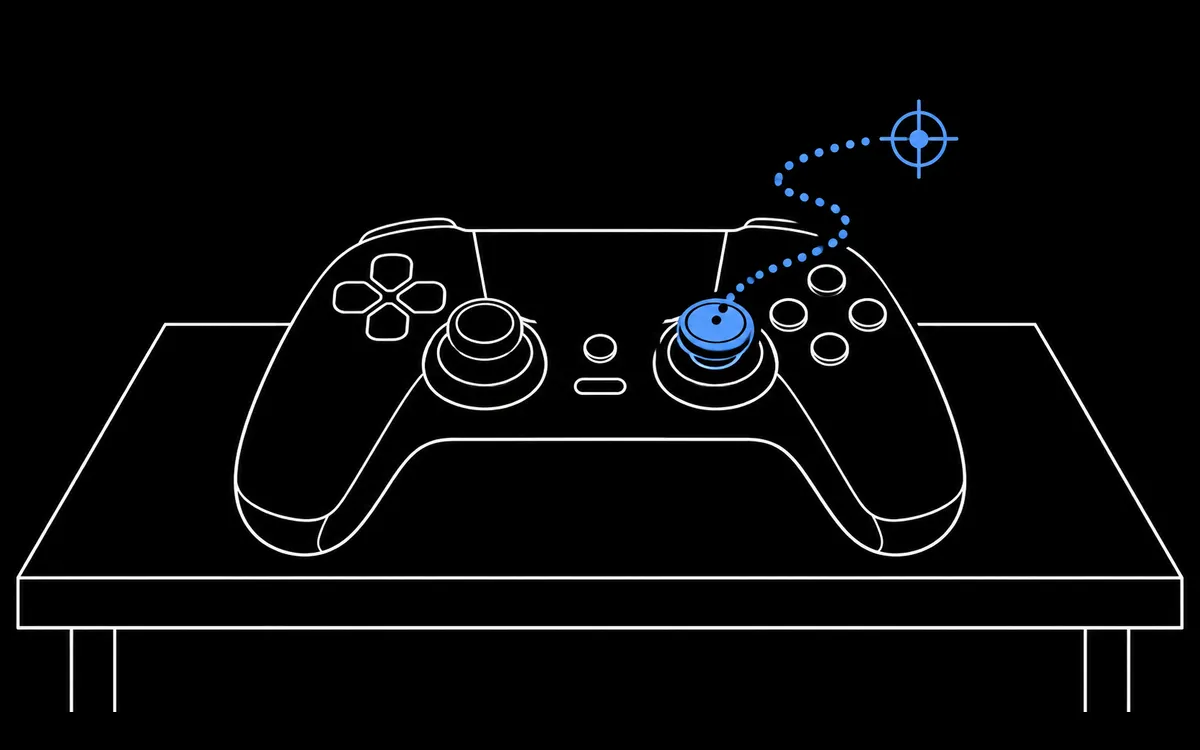 You suspect stick driftThe camera creeps or your character walks on its own. Measure the resting offset instead of guessing.
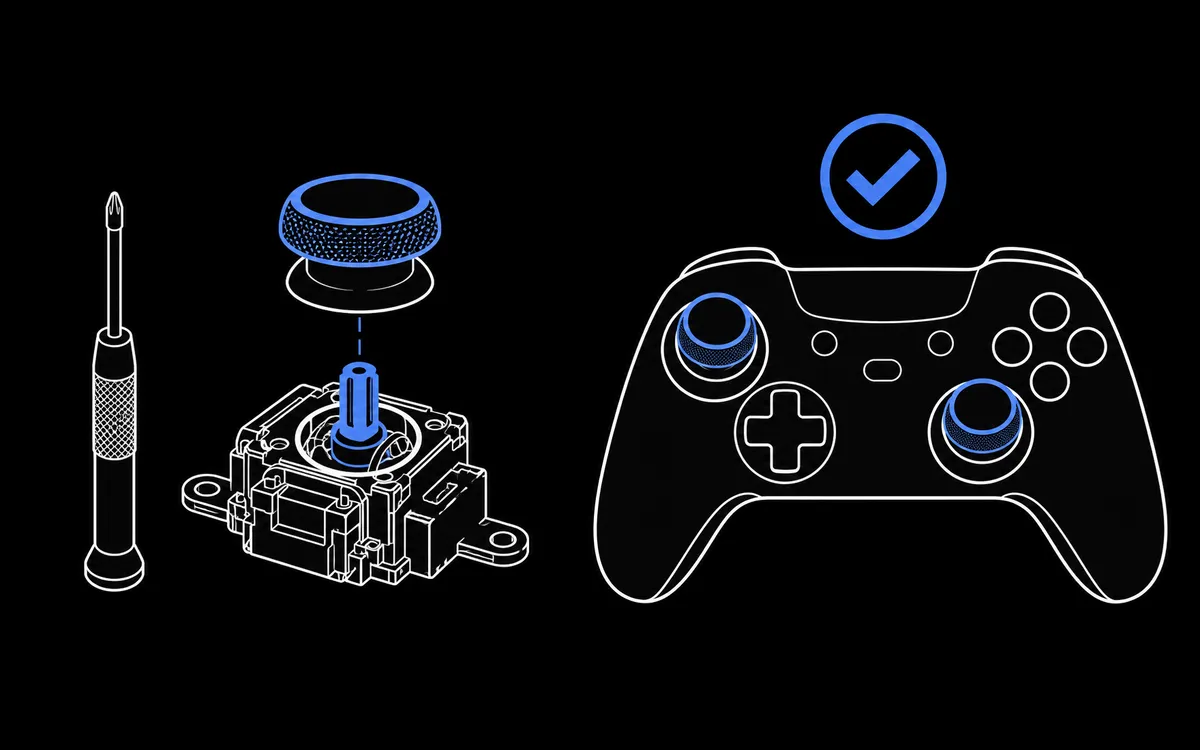 After a repair or new sticksConfirm the new modules center properly, reach every direction and report smooth movement.
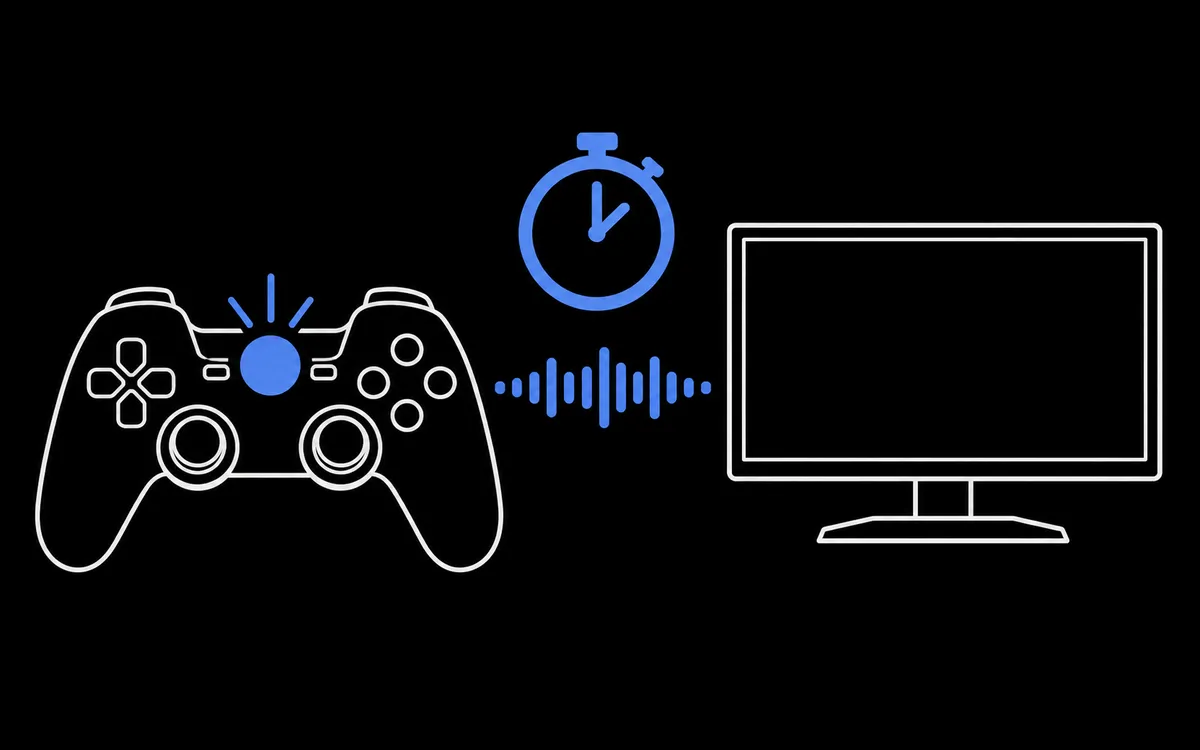 Before competitive playCompare cable, Bluetooth and receiver update rates and check that small aim movements register.
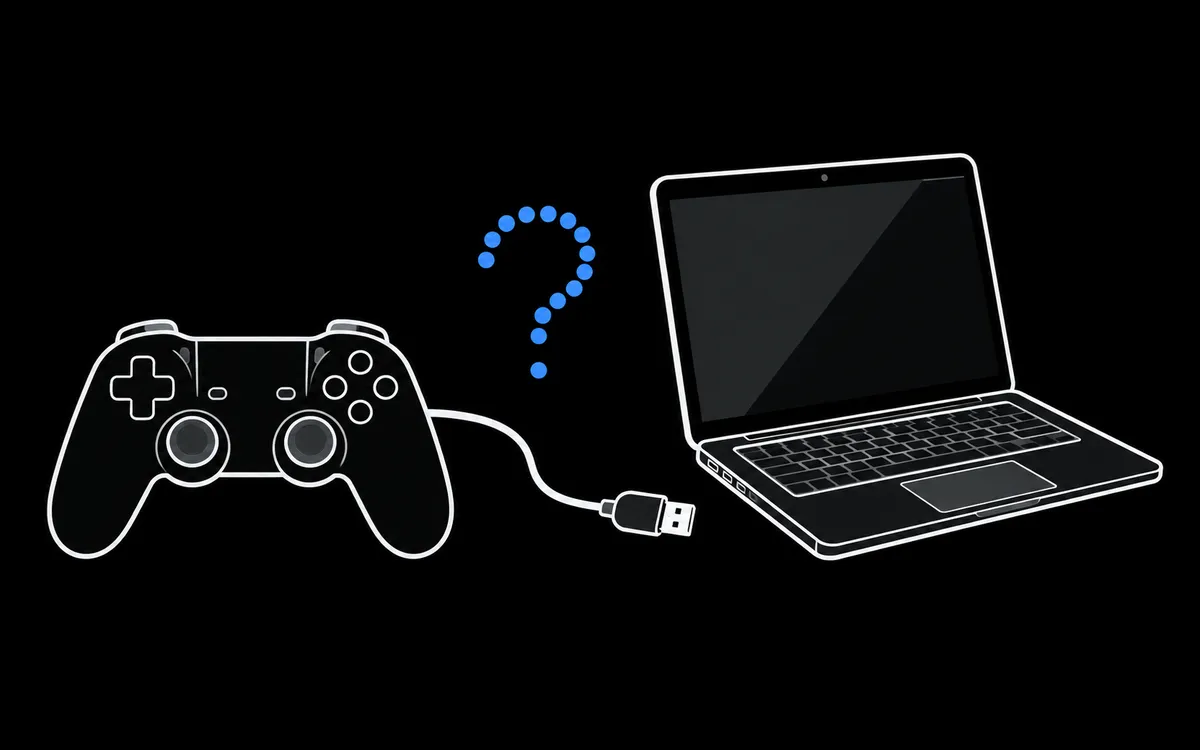 A button or the controller stops workingFind out whether the computer sees the controller at all and which input is failing.
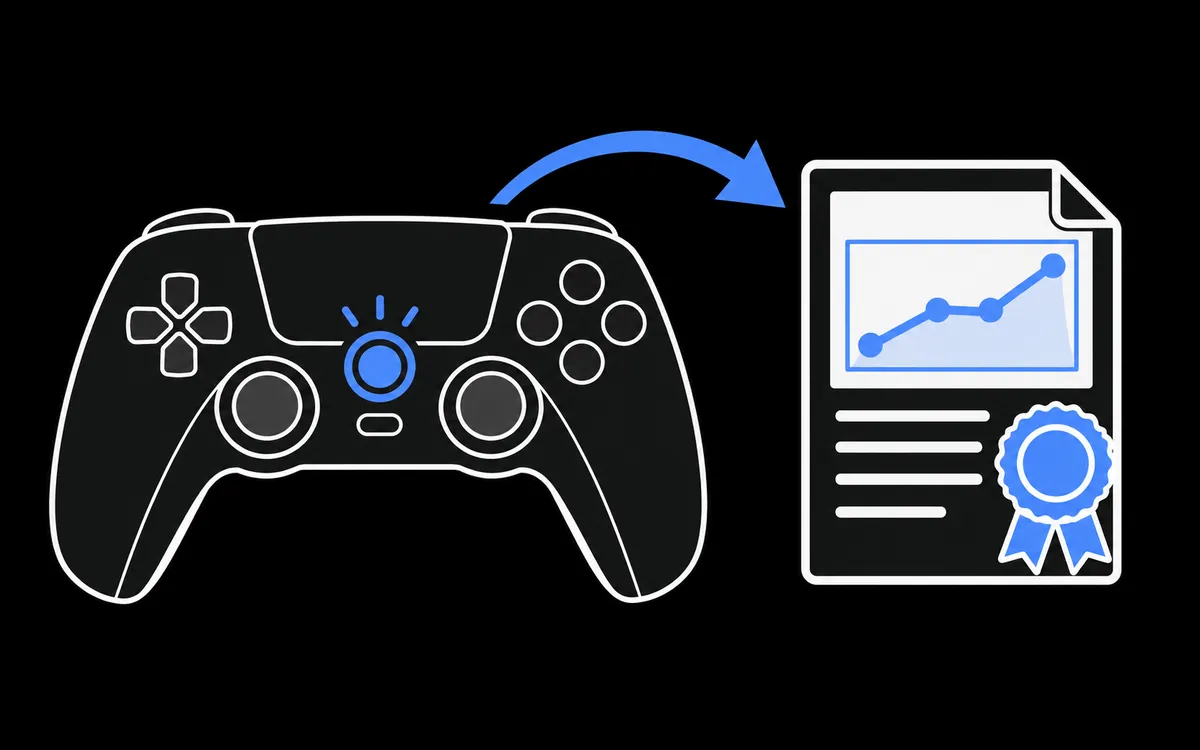 Warranty or return evidenceDownload a report with the measured values to attach to a support request.
Testers tuned to your controller
Correct button names, connection steps and known faults for each model.
Controller care tips
Small habits that keep sticks, buttons and batteries working longer.
Read the full care guide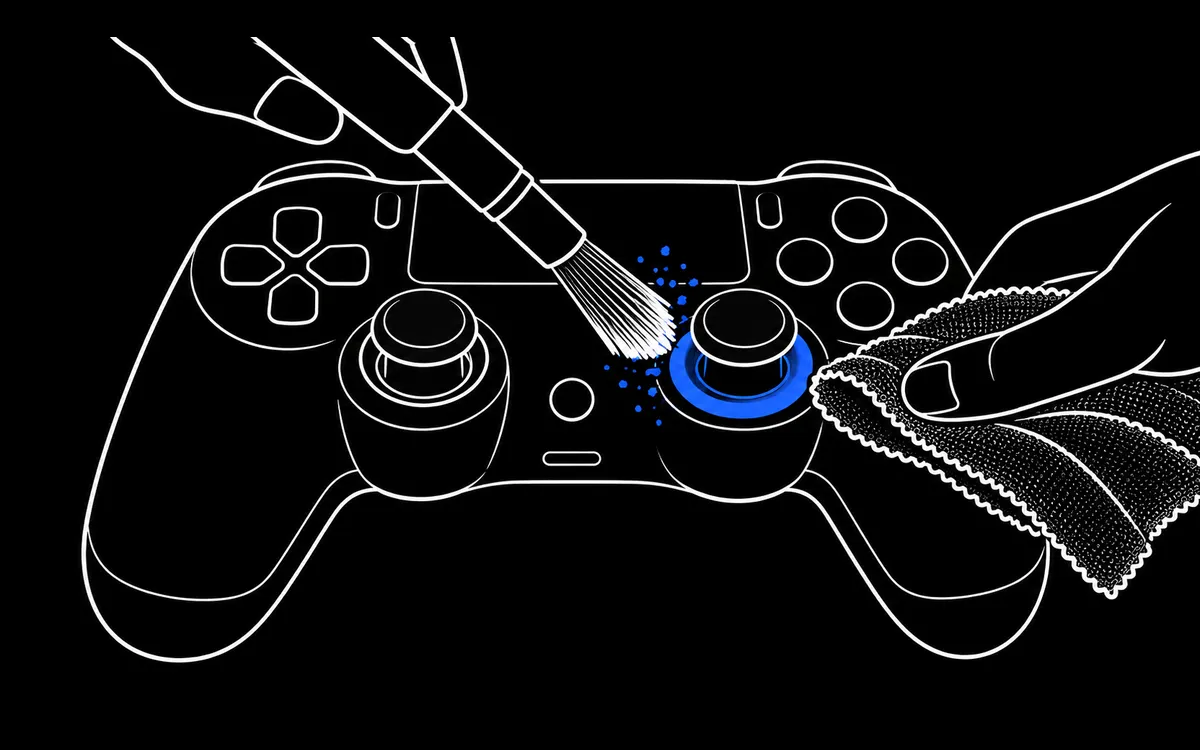 Clean the outside gentlyWipe with a soft lint free cloth, lightly dampened with mild soapy water if needed, and lift dust from around the sticks with a soft brush. Never apply liquid directly to the controller.
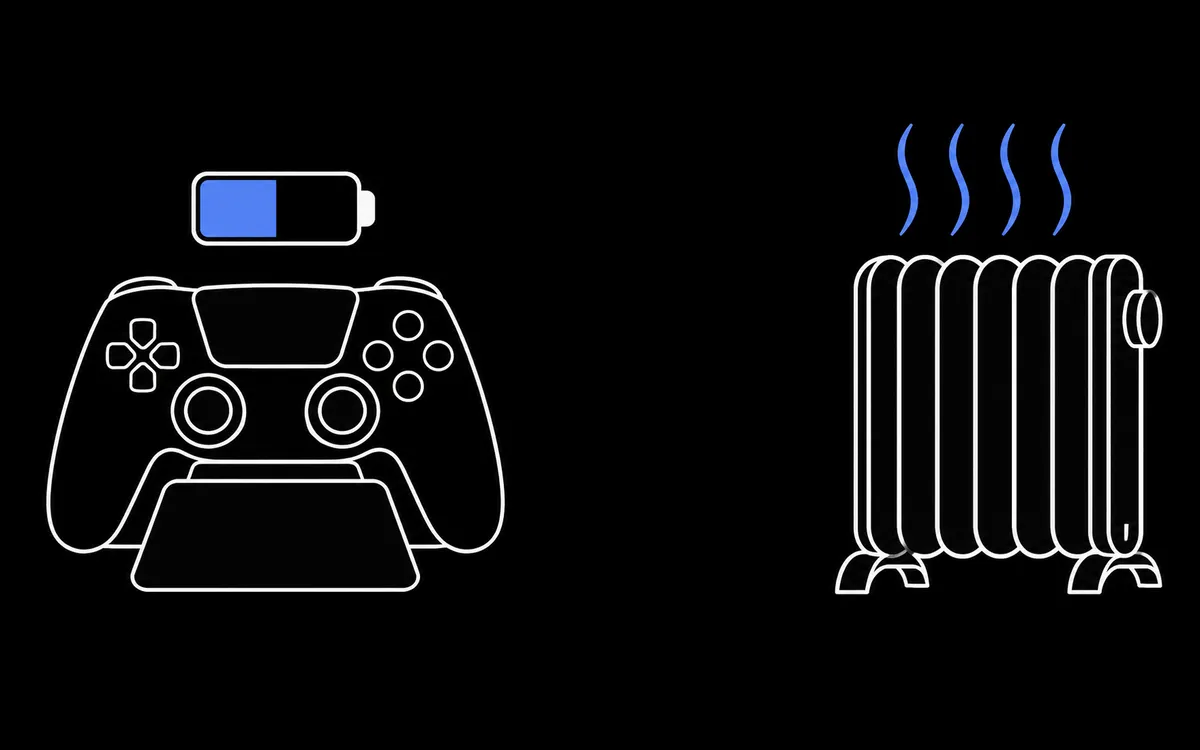 Keep the battery coolHeat above about 35 °C can permanently reduce lithium battery capacity. Charge away from radiators and direct sun, and store spare controllers about half charged.
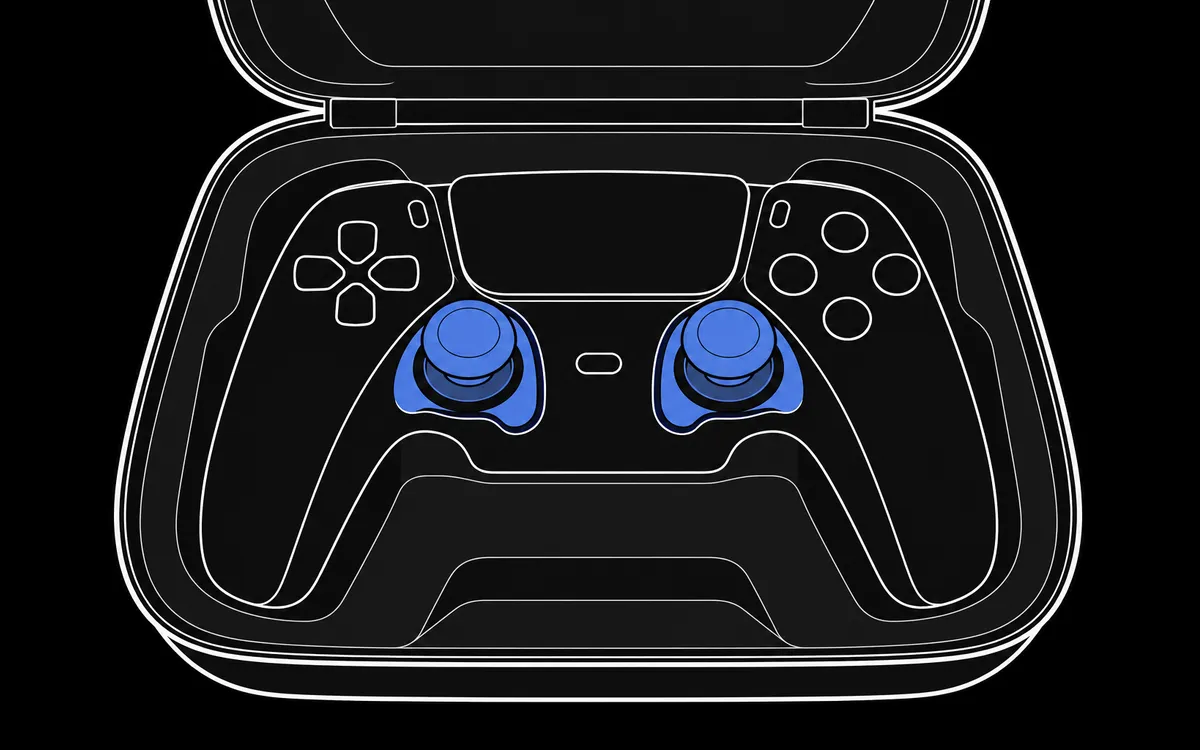 Store sticks unloadedPut controllers away face up or in a case so nothing presses on the sticks or triggers for hours.
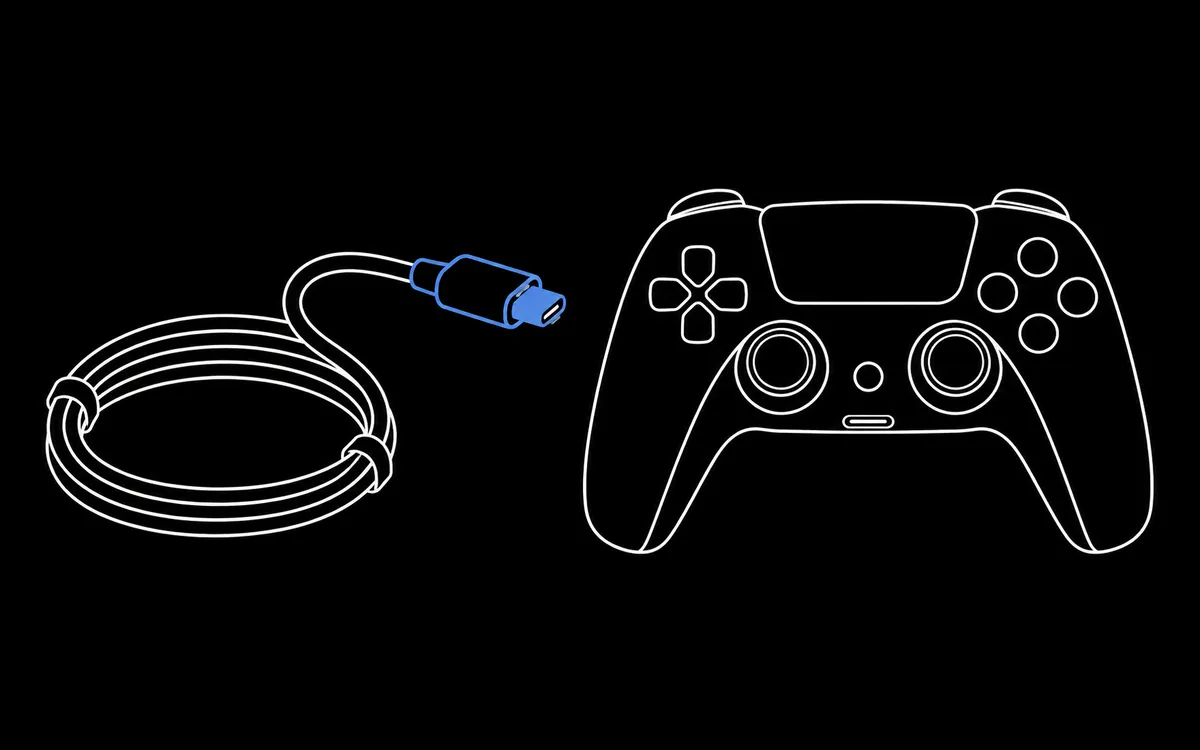 Treat the cable and port kindlyPull the plug, not the cable, and avoid sharp bends near the connector. A loose port is a common cause of disconnects.
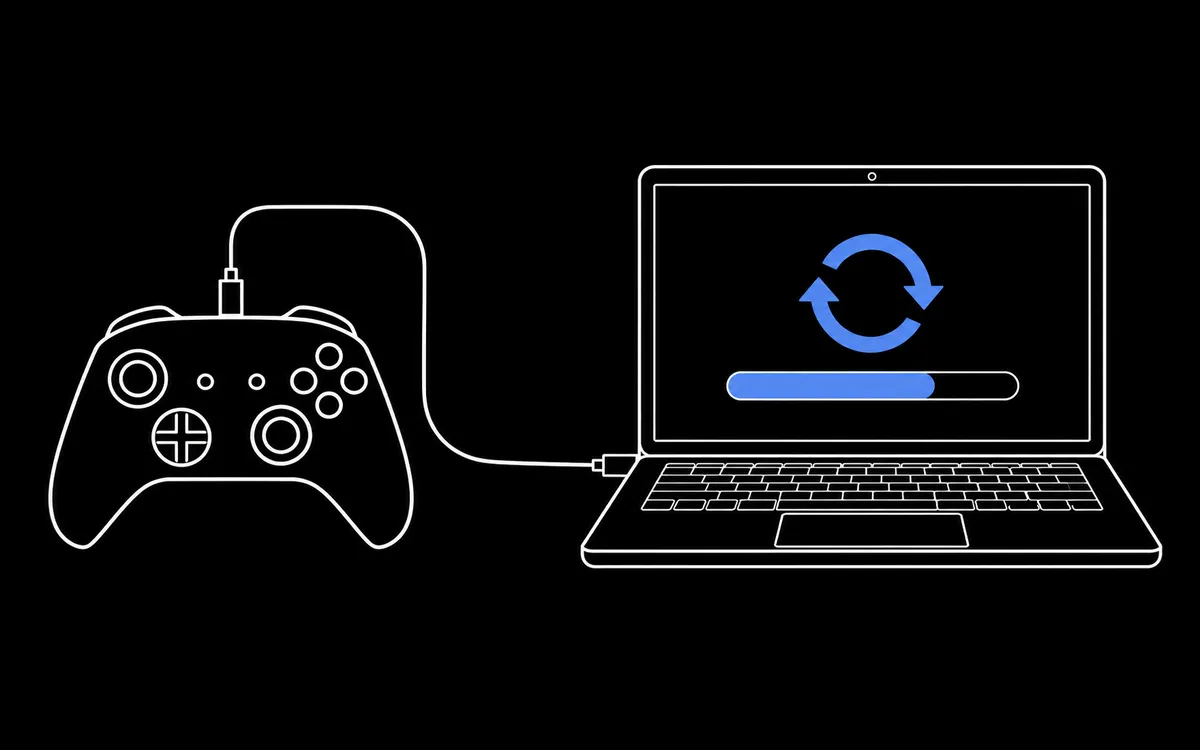 Install firmware updatesManufacturers fix connection and input problems in updates. Use the console or the official PC app.
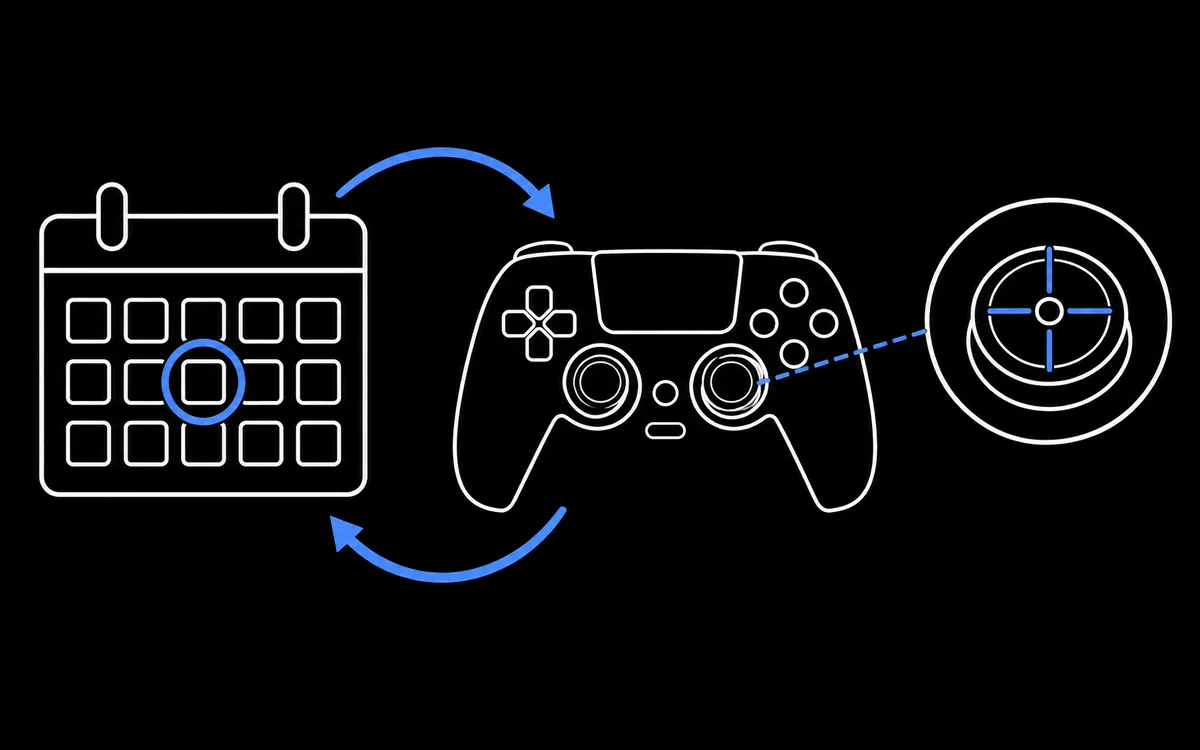 Check it now and thenRun the drift test every few months and keep the report. Comparing results shows wear before it ruins a match.
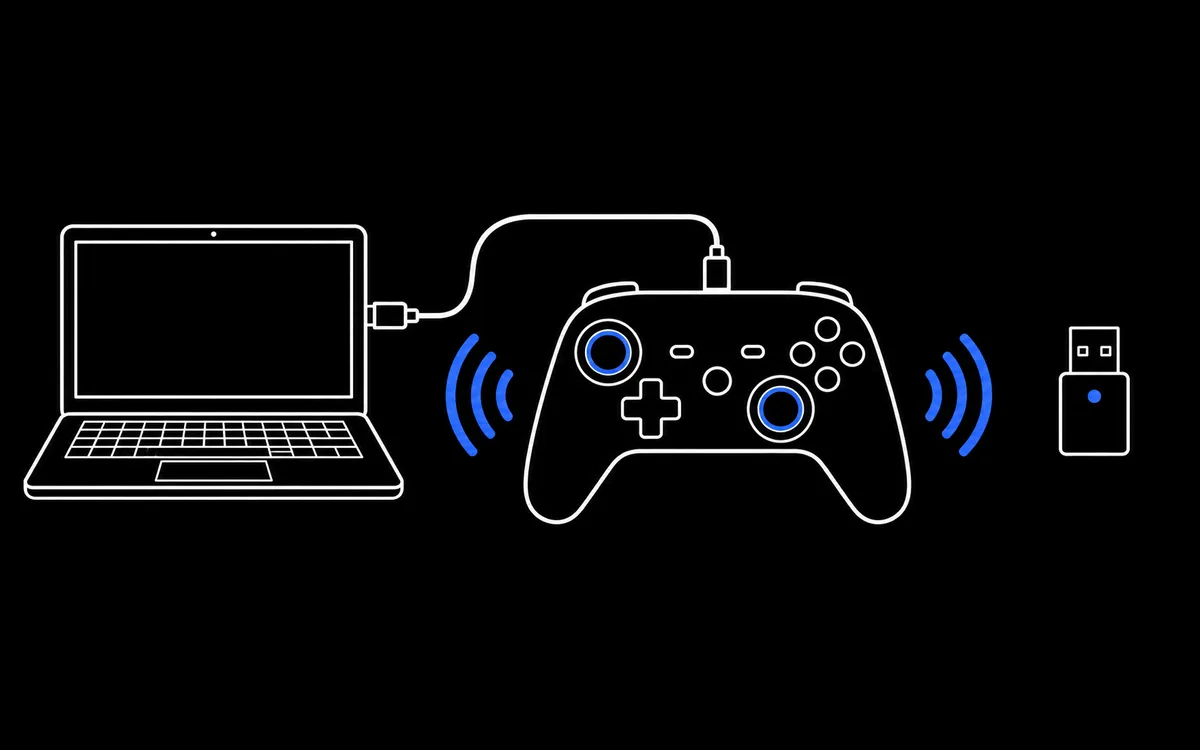 How to Connect a Controller to Test ItStep by step pictures for connecting PS5, PS4, Xbox, Switch and PC controllers by USB, Bluetooth or receiver, then testing them in your browser.
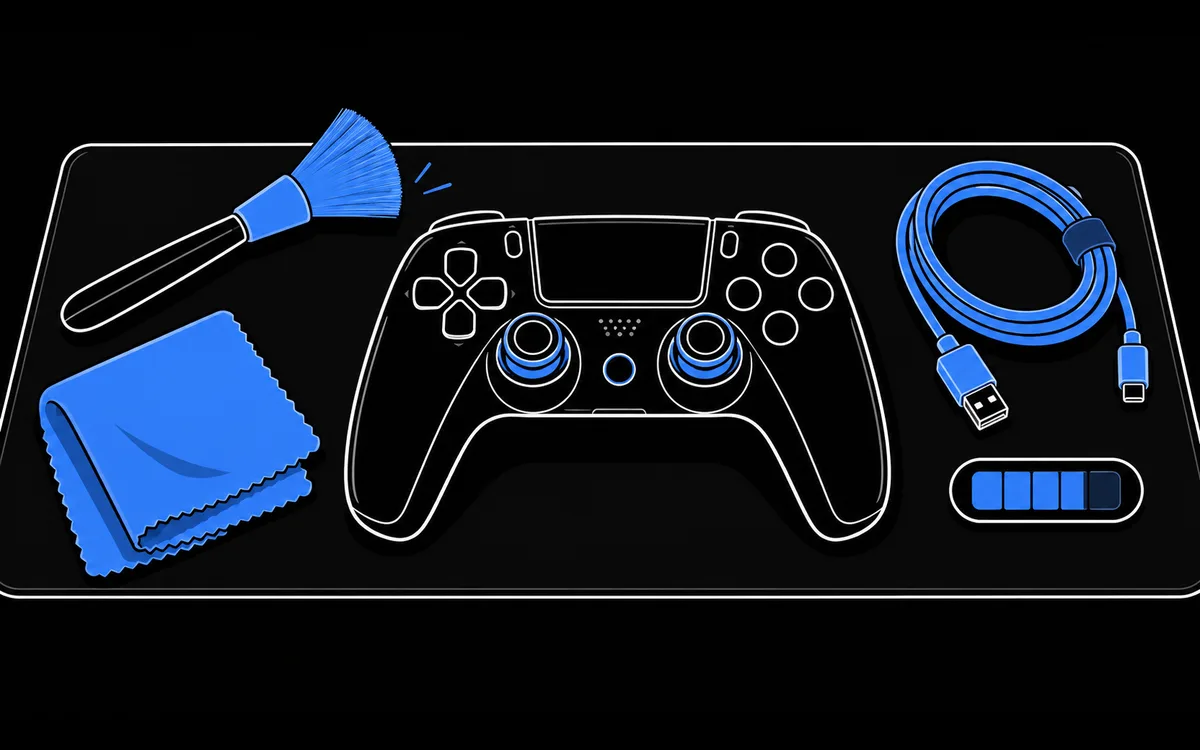 Controller Care: 7 Habits for Sticks and BatteriesHow to clean a controller safely, protect its battery and charging port, store it and check it regularly so drift and dead batteries show up early.
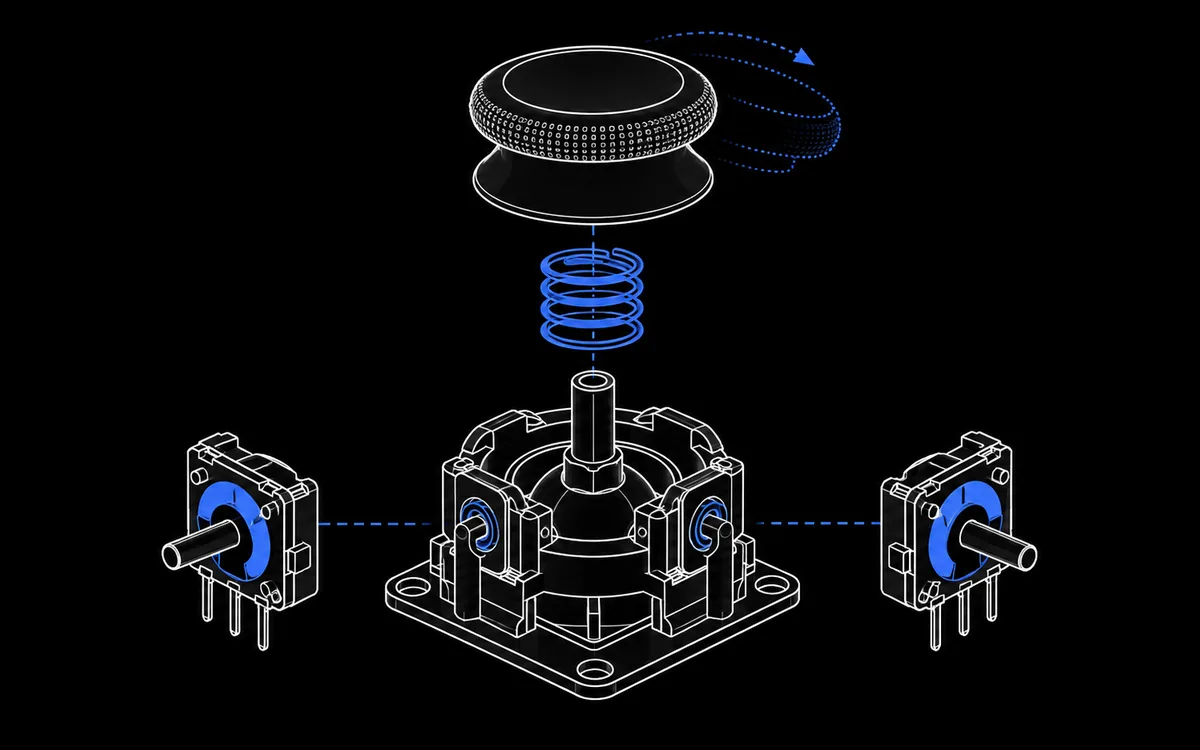 How to Fix Stick Drift on a PS5 ControllerMeasure the drift first, then work through the fixes in order of risk: reset, firmware update, cleaning, deadzones and finally repair or replacement.
Questions people ask before testing
- Why is my controller not showing up?
- Browsers only reveal a controller after you press one of its buttons, as a privacy measure. If pressing a button does nothing, try a different cable: many USB cables only carry power. Our step by step guide covers Bluetooth and drivers too.
- Which controllers can I test?
- Anything your computer sees as a game controller: Xbox Series, Xbox One and Xbox 360 pads, DualSense, DualShock 4 and DualShock 3, Switch Pro and Joy-Con, 8BitDo, GameSir, arcade sticks, wheels and flight sticks.
- Is any of my data uploaded?
- No. Inputs are read and processed inside your browser tab. Optional history and calibration profiles are kept in your browser storage on this device only.
- Does it work on a phone or tablet?
- Chrome on Android supports controllers connected by USB or Bluetooth. iPhone and iPad browsers support most standard controllers too, but rumble, WebHID battery and gyro tools need a desktop browser.
- How is this different from the controller settings in Windows?
- The Windows dialog shows that buttons work. Here you also get drift numbers, circularity and linearity scores, polling rate, rumble per motor, and battery and gyro for PlayStation controllers.
- Can this website fix stick drift?
- It measures drift and builds a correction profile you can use in games, but it never writes to your controller. For hardware fixes, follow the stick drift guide.
- Which browser should I use?
- A recent Chrome or Edge on desktop supports every tool. Firefox and Safari work for buttons, sticks and drift, with limited rumble and no WebHID tools.
Your controller is already connected. Probably.
Press any button and the bench above lights up.
Start testing