How to calibrate a PS5 or PS4 controller
Separate local software correction from device calibration, and check model-specific backup, memory and recovery limitations before changing anything.
Calibration and repair solve different problems
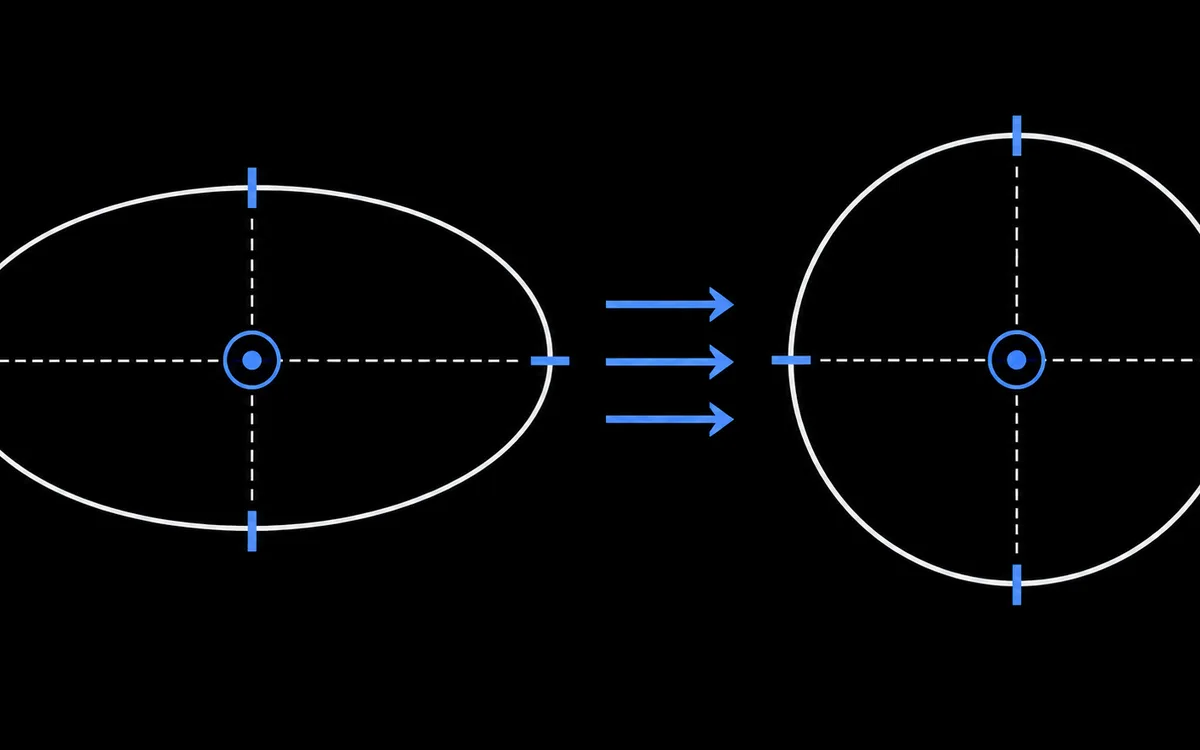
Calibration adjusts the mapping of sensor readings to center and full travel. It can compensate for an incorrect mapping, but cannot replace damaged mechanical parts. Repeated measurements of a stable offset are a clue, not proof that stored calibration is the cause.
Before changing anything, record raw resting positions after releasing each stick from several directions. Repeat a full sweep in the circularity test, and note any directions that fail to reach the edge. Keep the same connection and mapping settings for the comparison.
Start with software settings
A game's deadzone can suppress unwanted movement near center, at the cost of small-input response. Adjust it gradually and test aiming in that game.
Our calibration wizard estimates center, directional reach and a local correction profile. Saving or exporting it does not change the controller or other applications. Its automatic fit may fail to reach the chosen circularity target. Game and Steam settings use different scales and do not necessarily support all of the profile's corrections; there is no universal copy-and-paste conversion.
Sony's documented PlayStation Accessories functions include firmware updates and Edge customization, not a general DualSense or DualShock 4 hardware calibration workflow. Edge stick-response settings should not be confused with rewriting sensor calibration.
Third-party tools that change calibration
DualShock Calibration GUI supports PlayStation calibration. Its Edge module support is experimental: permanent storage requires disabling hardware write protection. It is not an ordinary software-only save. Read that tool's current warnings before proceeding; this guide does not recommend attempting the hardware modification. The tool's own page states that it cannot fix drift caused by physical stick wear, that calibrating a worn stick without replacing it may help or may make drift worse and cannot be undone, and that the internal battery must stay connected and charged because running out of power mid-process can leave the controller unusable. It also recommends trying a temporary calibration before a permanent one.
Sense Calibrator targets the standard DualSense over USB, not Edge or DualShock 4. Its README warns that calibration changes working values immediately, and some memory-lock and recovery behavior still lacks hardware confirmation. Do not assume unplugging always undoes a calibration.
Check the exact model and firmware, keep power stable, and read backup and recovery limitations before a device write. A browser-based interface does not make such writes harmless.
Verify without chasing perfect numbers
Compare raw readings before and after under the same settings. Then test movement and aim in a game. Exact zero at rest and identical circularity scores on both sticks are not universal requirements. A low circularity error also does not establish accurate response throughout the stick's travel.
If a problem keeps returning, or input jumps or sticks mechanically, investigate repair rather than repeatedly rewriting calibration. See the drift guide.
Sources
Documentation and local profile implementation checked 26 October 2026. Third-party calibration and recovery were not tested on physical hardware.