How to connect a PS5 controller to a PC
Connect a DualSense to a supported computer, then check whether the game needs Steam Input or native controller support.
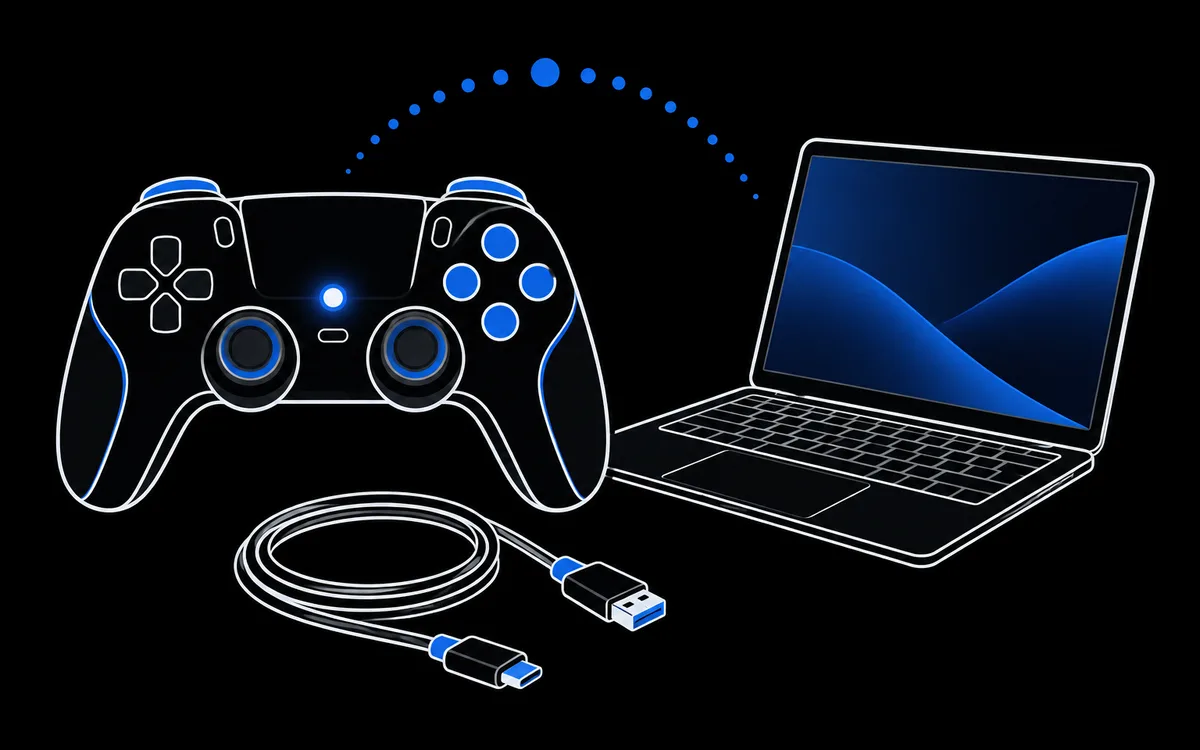
What you need
- A DualSense. For Edge, check its model-specific compatibility and firmware documentation.
- Windows 10 (64 bit) or Windows 11, or macOS 11.3 or later. Sony also lists Android 12 and iOS 14.5 and later.
- Either a USB C cable that carries data, or Bluetooth on your computer.
Option 1: connect with a USB C cable
This is the simplest and most reliable option.
- Plug the cable into the controller and a USB port on the computer, ideally a port on the back of a desktop rather than a hub.
- Press the PS button. The light bar turns on.
- Open the PS5 controller tester and press any button to confirm every input works.
If the controller charges but nothing happens on screen, a charge-only or faulty cable is one possibility; driver, port and browser access problems can look the same. Try a known data cable and another port. In Sony's PlayStation Accessories app, unplugging the cable disconnects and turns off the controller.
Option 2: pair over Bluetooth
Sony's official pairing steps:
- Make sure the controller is off: if the light bar is on, hold the PS button until it turns off, and unplug any cable.
- While holding the Create button (top left of the touchpad), press and hold the PS button until the light bar blinks. When pairing completes, the light bar blinks and then the player indicator lights up.
- On Windows, open Settings, Bluetooth and devices, Add device, Bluetooth, and choose Wireless Controller. On macOS, open System Settings, Bluetooth, and connect DualSense Wireless Controller.
With firmware that supports multiple pairings, a DualSense can remember four devices. Sony assigns Triangle, Circle, Cross and Square to slots 1 to 4: hold the action button with PS for over 5 seconds to register a device, or about 3 seconds to switch to an existing pairing. Update firmware if this workflow is unavailable.
Make games accept the DualSense
Pairing is only half the job. Many PC games were built around Xbox controllers, so they may ignore the DualSense or show the wrong button icons.
- Steam games. Enable Steam Input for the game if it needs controller translation. Prompts and features depend on the game. If a game has native DualSense support but special features stop working, try disabling Steam Input for that game so it can access the physical controller directly.
- Games with native support. A growing number of PC games support the DualSense directly, with feature-specific requirements. Sony states that PC haptic feedback requires USB; adaptive trigger support depends on the game. Do not assume their connection requirements are identical.
- Other launchers and older games. Add the game to Steam as a non Steam game to use Steam Input, or use a mapping tool. DS4Windows was the classic choice, but the schmaldeo fork was archived on 5 March 2026; check the exact repository rather than assuming all forks share its status; our driver guide explains what that means for the drivers it relied on.
Keep the firmware current
Sony's PlayStation Accessories app for Windows (10 or 11, 64 bit) shows each connected controller's battery level and firmware version, and offers an update when one is available. Keep the controller connected until the update finishes. Updating can fix connection problems and is worth doing before you troubleshoot anything else.
Test before you play
Once connected, a quick check saves frustration later:
- Press every button in the PS5 controller tester.
- Leave the sticks alone for the stick drift test.
- Check the charge with the battery tool.
- Compare cable and Bluetooth in the polling rate test.
Troubleshooting
| Problem | Try this |
|---|---|
| Not detected over USB | Use a different data capable cable and a rear USB port. |
| Pairing never starts | Turn the controller off first, then hold Create and PS until the light bar blinks. |
| Pairs but disconnects | Charge the controller and move it closer, away from Wi-Fi routers. |
| Game ignores it | Enable PlayStation support in Steam Input or add the game to Steam. |
| Double inputs in a game | Two layers are active at once, such as Steam Input plus another mapper. Turn one off. |
Still stuck? Our controller not detected guide covers the remaining causes step by step.
Sources
Checked 26 October 2026. These are documented setup steps, not a guarantee that every game or browser exposes every input.