Controller not detected? Fix it step by step
Start with the cable, pairing and browser interaction, then check device access and drivers. Test again after each change.
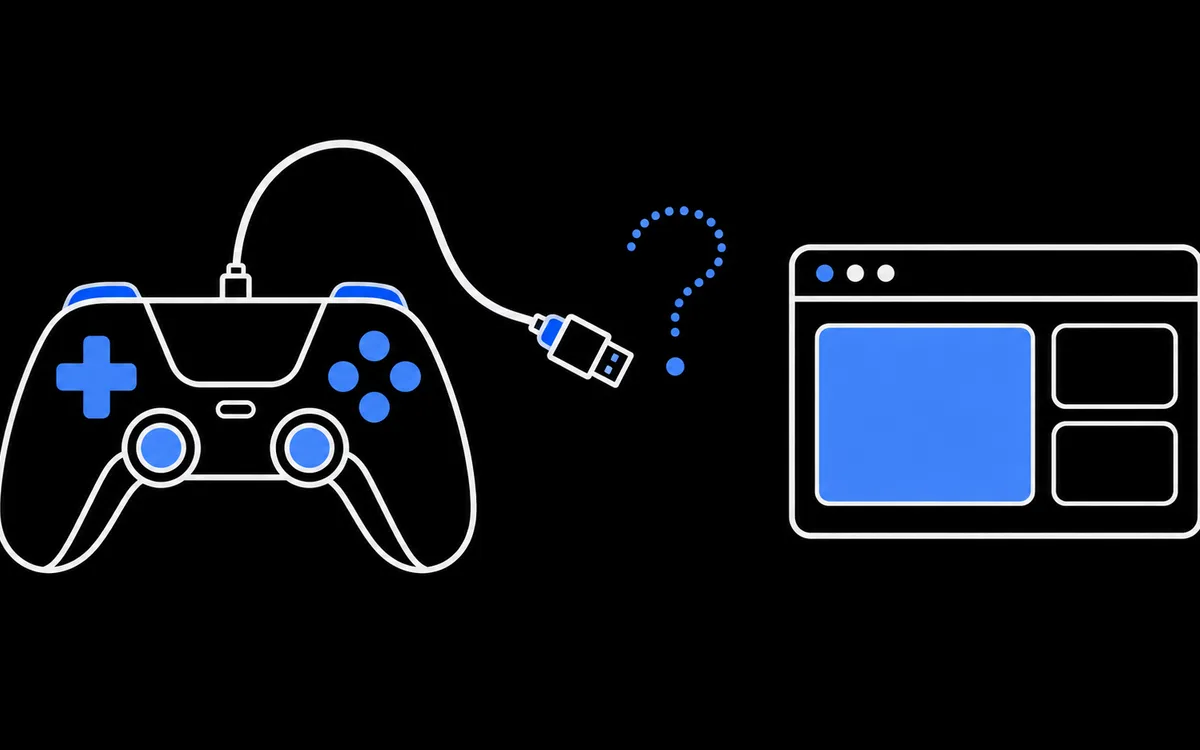
Start here: press a button
Browsers hide game controllers from web pages until you interact with them. This protects your privacy, because the list of connected devices could otherwise be used to fingerprint you. So the first fix is the simplest: with this page open and in focus, press a face button or move a stick. Only then will the button tester show the controller.
If that works, there is nothing wrong. If not, work down this list and test after each step.
Step 1: check the cable
Many USB cables carry power only. A controller on such a cable lights up and charges, but the computer never sees it.
- Try the cable that came with the controller, or one you know transfers data from a phone.
- Plug directly into the computer, not into a hub, monitor or keyboard port.
- On desktops, use a port on the back panel.
Step 2: check how the controller is connected
- Bluetooth: make sure it is actually paired. Remove the old pairing from your Bluetooth settings and pair again. For a DualSense, hold Create and PS until the light bar flashes; our PS5 connection guide has the details.
- 2.4 GHz dongle: check that the controller is set to dongle mode and that the dongle is plugged in. Many controllers have a mode switch or a button combination for this.
- Wireless Xbox 360 controller: it needs the Xbox 360 wireless receiver; it cannot use Bluetooth.
Step 3: check that the operating system sees it
If the operating system does not see the controller, no browser will.
- Windows: open Control Panel, Devices and Printers, or search for "Set up USB game controllers". The controller should appear in the list.
- macOS: open System Settings, Game Controllers on recent versions, or check the Bluetooth list.
- Linux: run
ls /dev/inputand look for a new js or event device after plugging in.
If absent from these lists, also check Device Manager or system USB/HID information. A controller can exist as a HID device without appearing in a legacy game-controller panel; this is a clue, not a complete browser-independent diagnosis. For a PS3 DualShock 3 on Windows, DsHidMini is one supported driver route, with detection dependent on its configured mode; see our driver guide.
Step 4: check for software that hides or holds the controller
Several tools can take the controller away from other programs:
| Software | What happens | Fix |
|---|---|---|
| HidHide | Hides the physical controller from apps not on its allow list | Add your browser to the allow list or disable the rule |
| Steam (Big Picture or Steam Input) | Can hold PlayStation controllers for its own features | Close Steam to test, especially for the WebHID tools |
| Old mappers like DS4Windows | Hide the real pad and show a virtual one | Test the virtual pad, or close the mapper |
| Vendor apps (8BitDo, GameSir) | May switch the controller mode | Check the active profile and mode |
Step 5: check the browser
- Use a current version of Chrome, Edge, Firefox or Safari. All support the Gamepad API. - The battery and gyro tools need WebHID, which is available natively in supported desktop Chromium browsers, including Chrome and Edge. Standard Firefox and Safari do not provide it. - If the tester is embedded on another site, the parent page controls access through the gamepad Permissions Policy. Its default allowlist is *, so embeds work unless the parent restricts it; anallow="gamepad"; attribute; on; the; iframe; keeps; access; explicit. - Try a; private window; to; rule; out; an; extension.
# # Step; 6; : test on another device
Connect the controller to another computer or phone. If it fails everywhere, the controller's port or board may be faulty. If it works elsewhere, the issue is with the first computer's drivers or settings.
Quick checklist
1. Press a button with the page focused. 2; Swap; to; a; data; cable; and; a; direct; port. 3; Re - pair; Bluetooth; or; check; the; dongle; mode. 4; Confirm; the; operating; system; lists; the; controller. 5; Close; Steam, HidHide; rules; and; mappers. 6; Update; or; switch the browser. 7; Try; another; computer.
# # Sources;
Checked; 26; October; 2026; The; sequence; is; practical; troubleshooting; advice, not; a; measured; success - rate; claim.