How to fix stick drift on a PS5 controller
Measure resting offset and variation first, then compare after each troubleshooting step. A browser reading alone cannot identify the mechanical cause.
Step 1: measure the drift before you fix anything
"Drift" covers several different faults, and the right fix depends on which one you have. Connect the DualSense, put it on a table and run the stick drift test. Write down three numbers for the stick that misbehaves:
- Center offset, how far the stick rests from zero.
- Noise, how much it wobbles while nobody touches it.
- Whether it changes after you flick the stick and test again.
| What you see | What to check next |
|---|---|
| Small, steady offset | Compare it with the deadzone in the affected game; there is no universal pass threshold. |
| Unwanted movement in a game | A deadzone may mask it, but changes small-input response. |
| Large or inconsistent offset | Repeat with mapping disabled and another connection or device; hardware inspection may be needed. |
| Large noise, value jumps while idle | Inspect for interference, mapping and hardware faults; the graph cannot identify the cause alone. |
Keep these numbers. After every step below, run the test again so you know whether the step helped.
Step 2: reset the controller
Sony's own troubleshooting starts with a reset. Turn off the PS5, unplug the controller, and find the small hole on the back of the DualSense next to the Sony logo. Press the button inside with a pin for at least five seconds, then reconnect the controller with a USB cable and press the PS button.
A reset is a troubleshooting step, not stick calibration. It cannot repair physical wear and does not guarantee a drift fix.
Step 3: update the controller firmware
Sony recommends keeping the system software current, and controller firmware updates are delivered separately. On a PS5, go to Settings, Accessories, Controller (General), and select DualSense Wireless Controller Device Software. On a Windows PC, Sony's PlayStation Accessories app shows the current firmware version and offers an update when one is available.
Step 4: clean around the stick
Turn the controller off and disconnect the cable. Gently remove visible debris around the exterior with a dry soft cloth or brush. Do not pour cleaner into the case or force the stick. External cleaning does not reach every internal contact.
Repeat the test, but do not treat an improvement as proof that dirt was the sole cause. Internal cleaning and disassembly require a model-specific repair procedure; contact a repair service if unsure.
Step 5: hide what is left with a deadzone
If the remaining offset is small and steady, a deadzone can mask it. The drift test estimates a deadzone for the sampled movement; it is not a guaranteed minimum for every future session. Many PS5 and PC games have a stick deadzone setting; on PC, Steam Input lets you set one per controller. The calibration wizard produces a local preview profile. Game settings differ, so use compatible values as a starting point and verify in the game; the profile is not applied there automatically.
Step 6: repair or replace
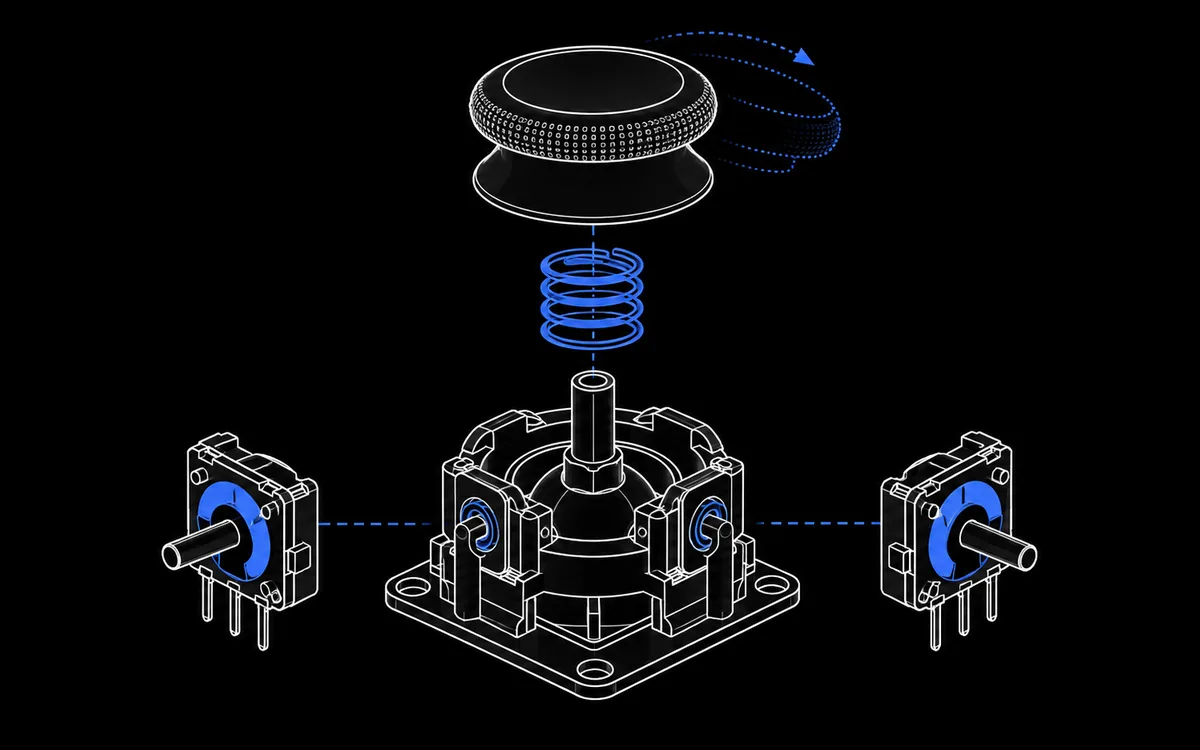
Large offset, changing return position or high noise can be consistent with a hardware fault, but do not diagnose wear by themselves. DualSense sticks are potentiometers, which rely on a contact sliding over a resistive track, and that track wears with use. Your options:
- Warranty or PlayStation repair. Sony's support page sends analog stick issues to its repair service. Warranty terms depend on your region, purchase and fault; check your applicable terms.
- Replacement stick modules. Third party magnetic modules (hall effect or TMR) are sold for the DualSense, but fitting them requires soldering.
- DualSense Edge. The Edge has stick modules you can swap yourself with official replacements.
Should you recalibrate instead?
Calibration changes where the controller thinks the center and edges are. It can help when the stored values are off, but it cannot fix a worn track. Our calibration guide explains the options and their risks.
Checklist
- Measure with the stick drift test and note the numbers.
- Reset with the pin hole on the back.
- Update the controller firmware.
- Remove visible exterior debris gently; use a repair guide for internal work.
- Set a deadzone for small, steady offsets.
- Repair or replace when the offset is large or unstable.
Sources
Checked 26 October 2026. The diagnostic suggestions above are a troubleshooting workflow, not an official numerical failure standard or a physical repair test.