How to connect a controller to test it
USB, Bluetooth or a wireless receiver: pick your method, follow the pictures, then press any button on this site.
Before you start
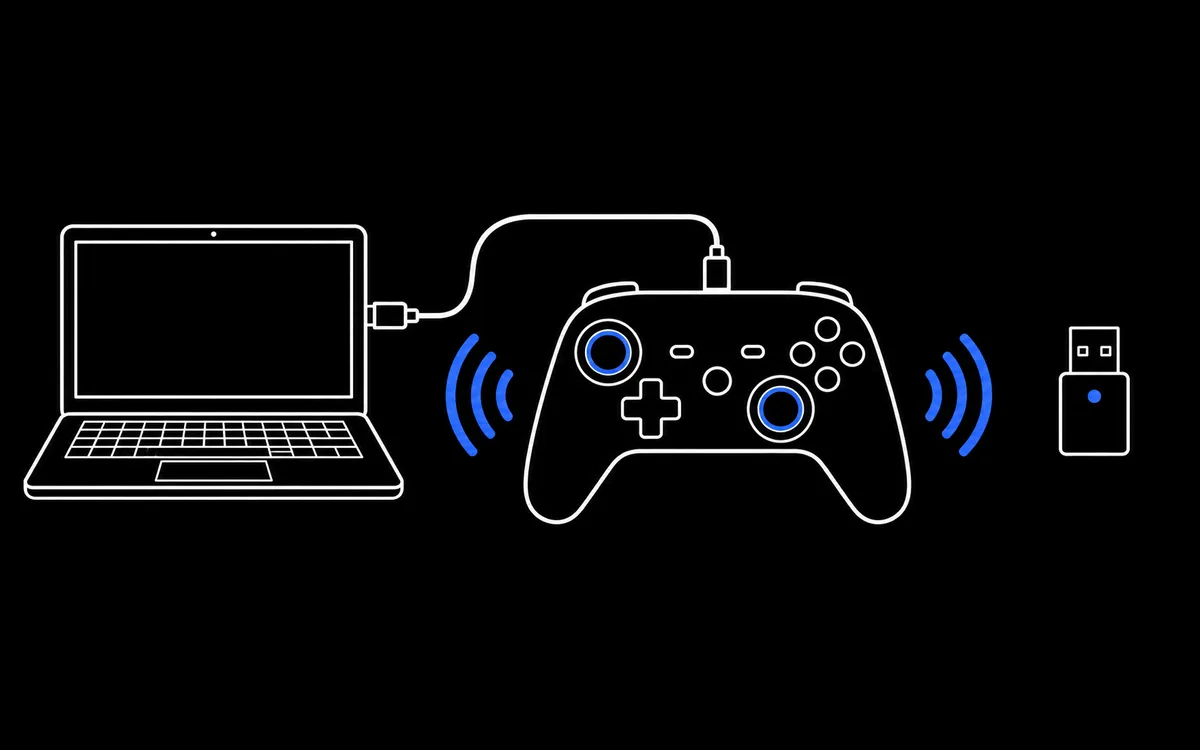
You need three things: the controller, a way to connect it, and a current browser. Chrome, Edge, Firefox and Safari all read controllers. The battery and gyro tools additionally need Chrome or Edge on a desktop computer.
There are three ways to connect. Pick the one your controller supports; you can always switch later and compare.
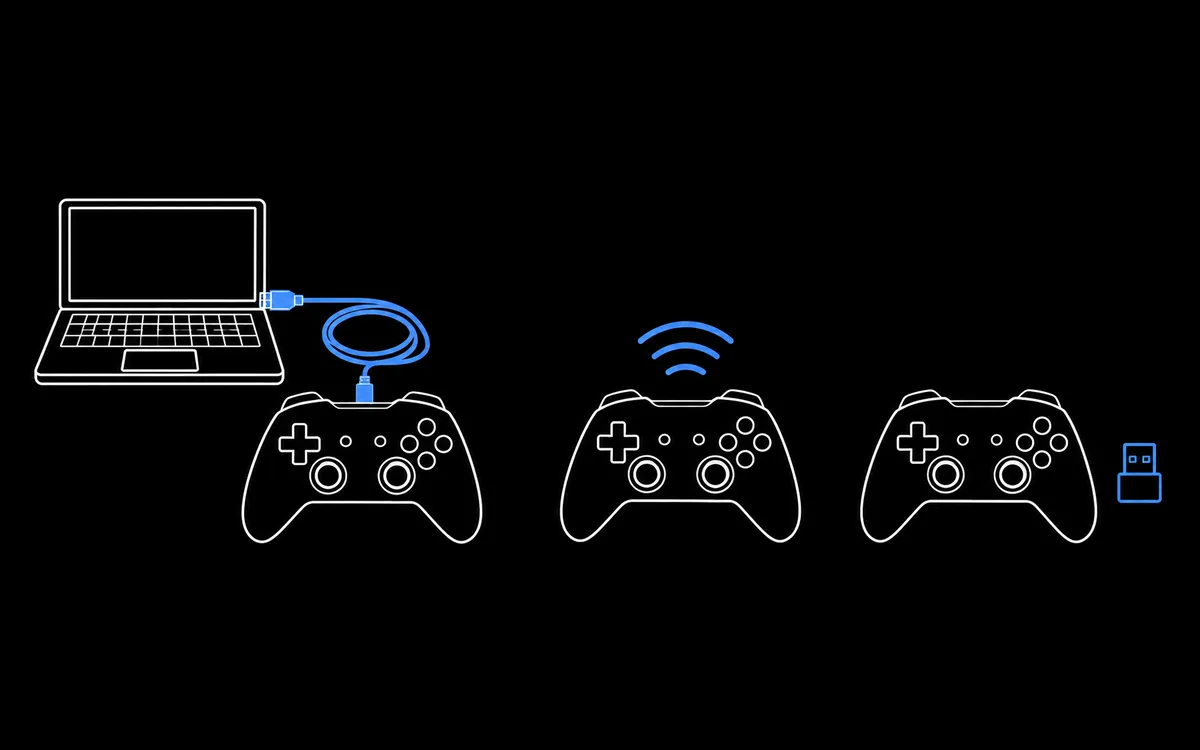
| Method | Good for | Watch out for |
|---|---|---|
| USB cable | The quickest, most reliable test | Cables that only charge |
| Bluetooth | Testing wirelessly, as you play | Each brand pairs differently |
| USB receiver (2.4 GHz) | 8BitDo, GameSir and similar pads | The controller must be in receiver mode |
Method 1: USB cable
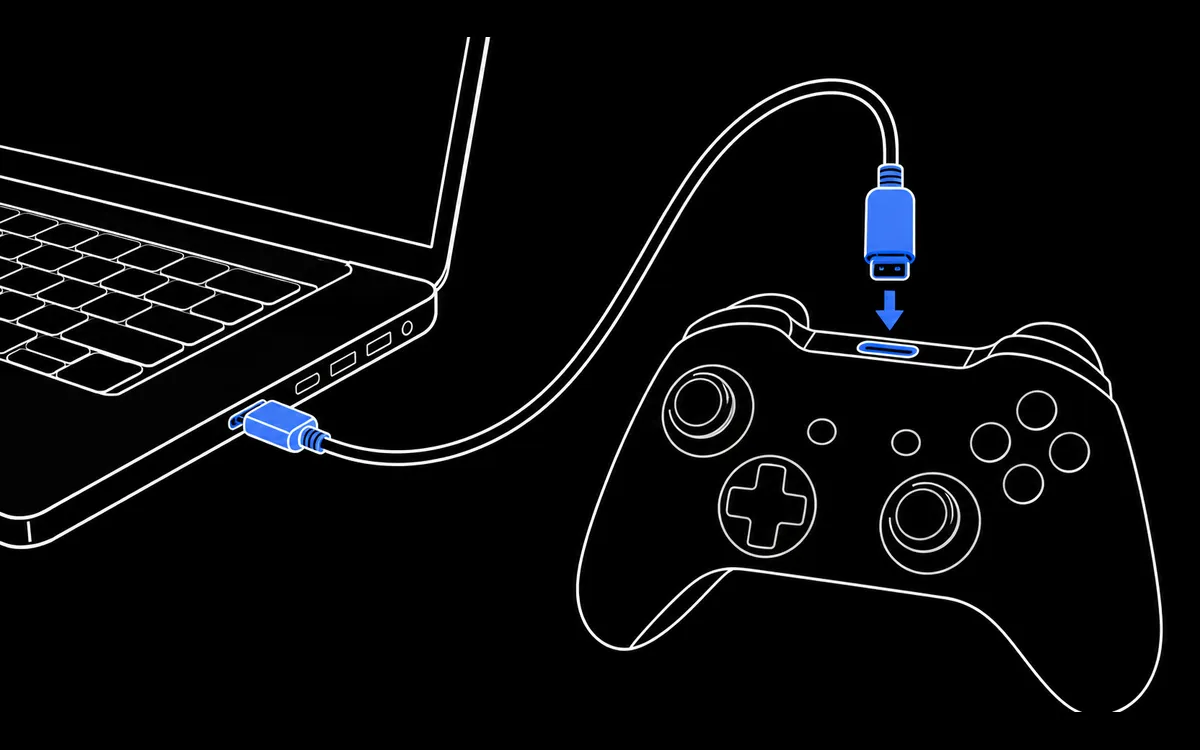
Step 1: plug in a data cable
Connect the controller to a USB port on the computer itself, not to a monitor, keyboard or unpowered hub. PS5 and Xbox Series controllers use USB C; PS4 and older Xbox One controllers use micro USB. Microsoft's own instructions remind you to use a cable that supports data transfer, because many charging cables do not.
Step 2: turn the controller on
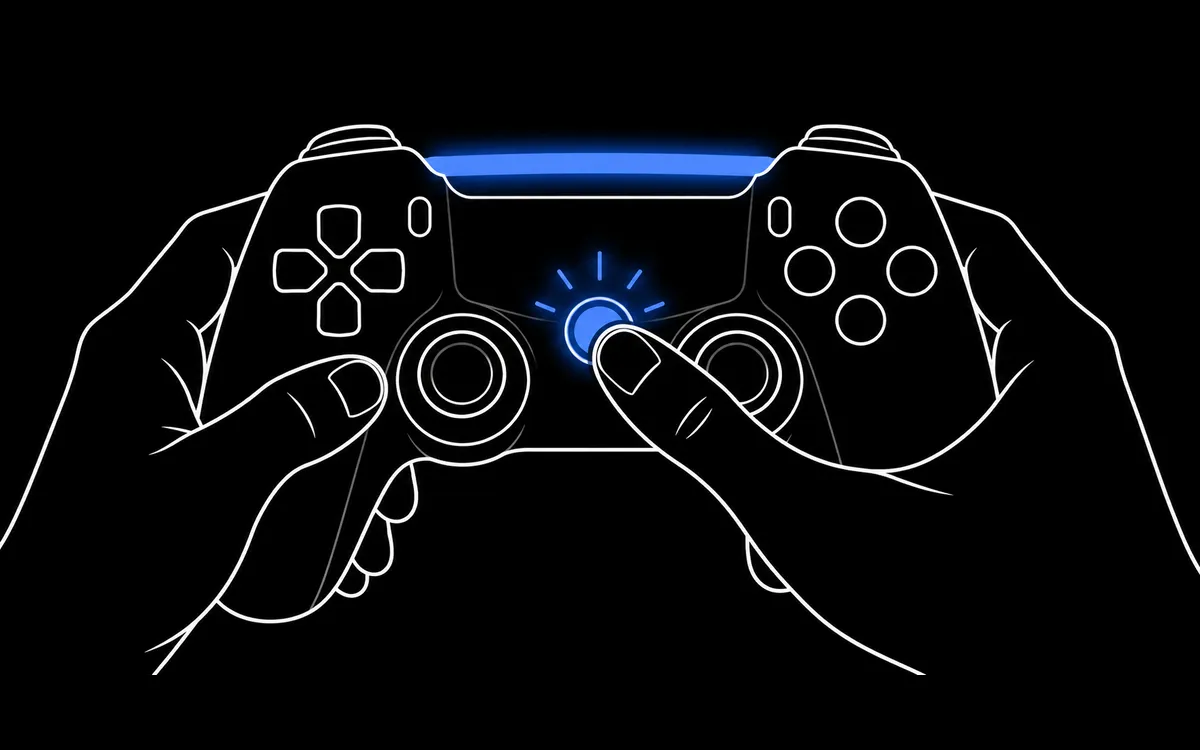
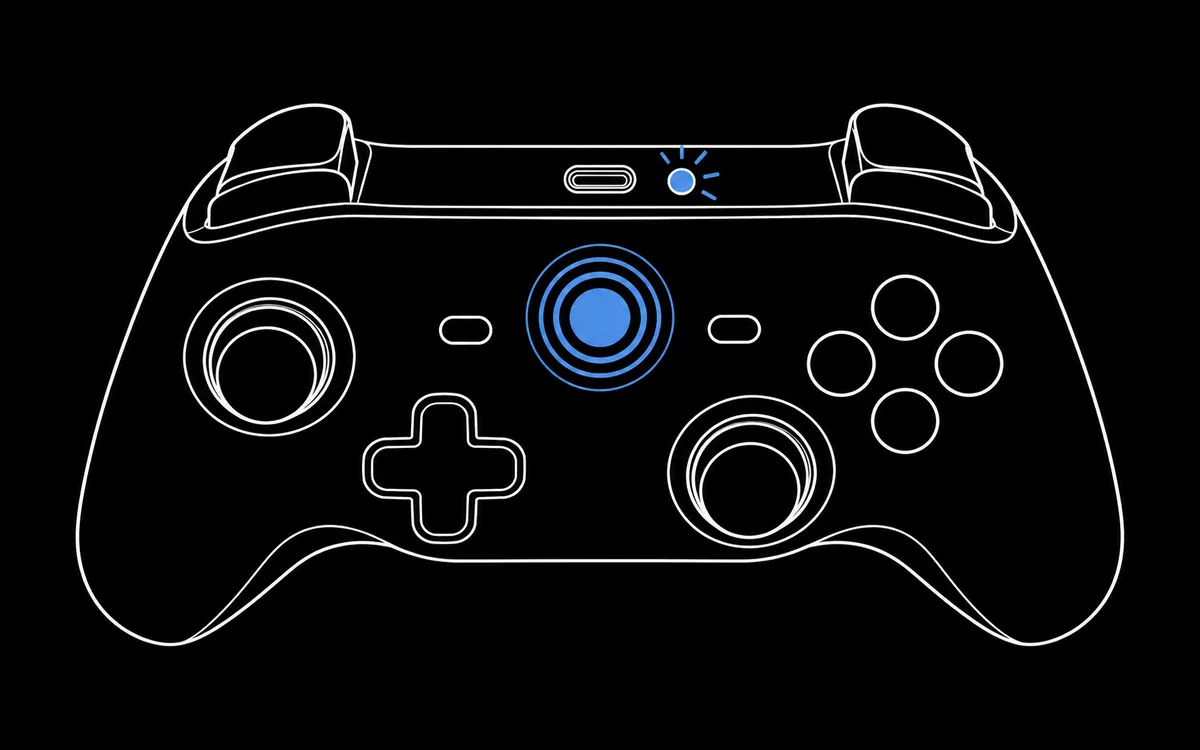
Press the PS, Xbox or Home button in the middle of the controller. Its light should come on. If the light comes on but nothing appears in the next step, swap the cable before trying anything else.
Method 2: Bluetooth
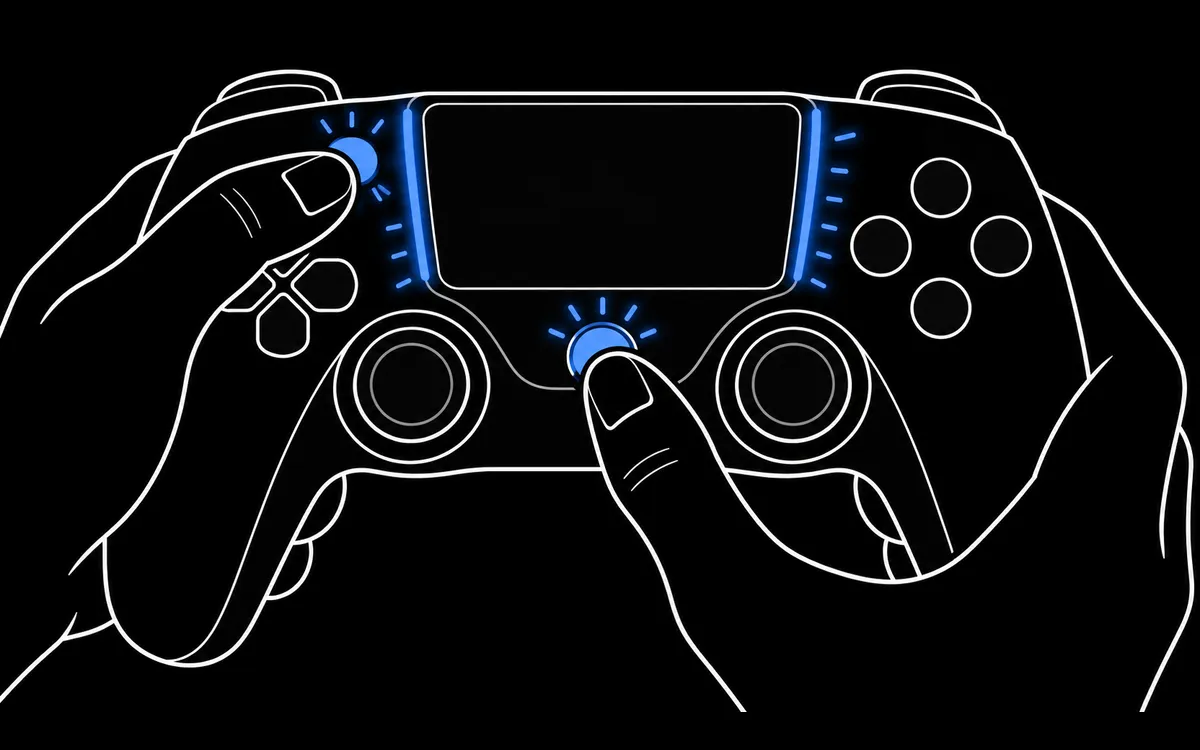
Step 1: put the controller in pairing mode
Turn the controller off first, and unplug any cable. Then use the combination for your controller:
| Controller | Pairing combination | What you see |
|---|---|---|
| PS5 DualSense | Hold Create, then press and hold PS | Light bar blinks |
| PS4 DualShock 4 | Hold Share, then press and hold PS | Light bar flashes |
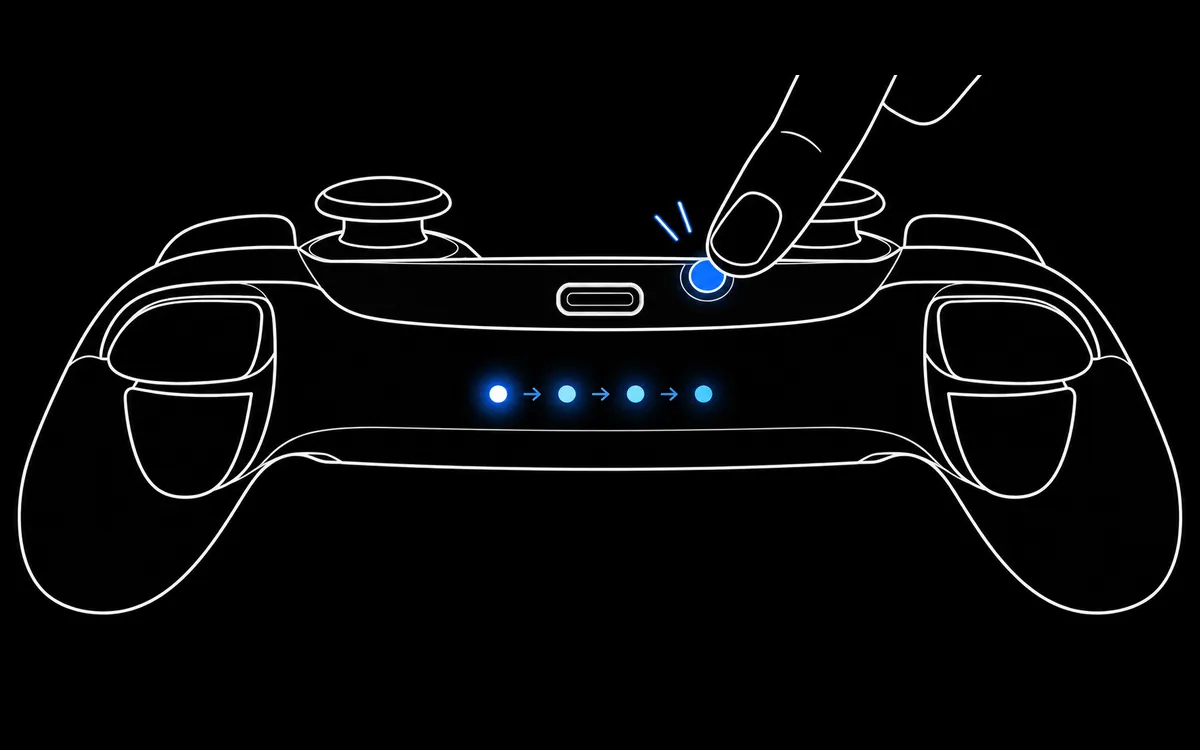
| Xbox Wireless Controller | Press Xbox to turn it on, then hold the Pair button on the top edge for three seconds | Xbox button flashes rapidly |
| Switch Pro Controller | Hold the small SYNC button on the top edge | Player lights run |
| Joy-Con | Hold the SYNC button on the rail | Green lights run |
| 8BitDo, GameSir and others | Check the manual for the Bluetooth mode | Varies by model |
Step 2: add the controller on your computer
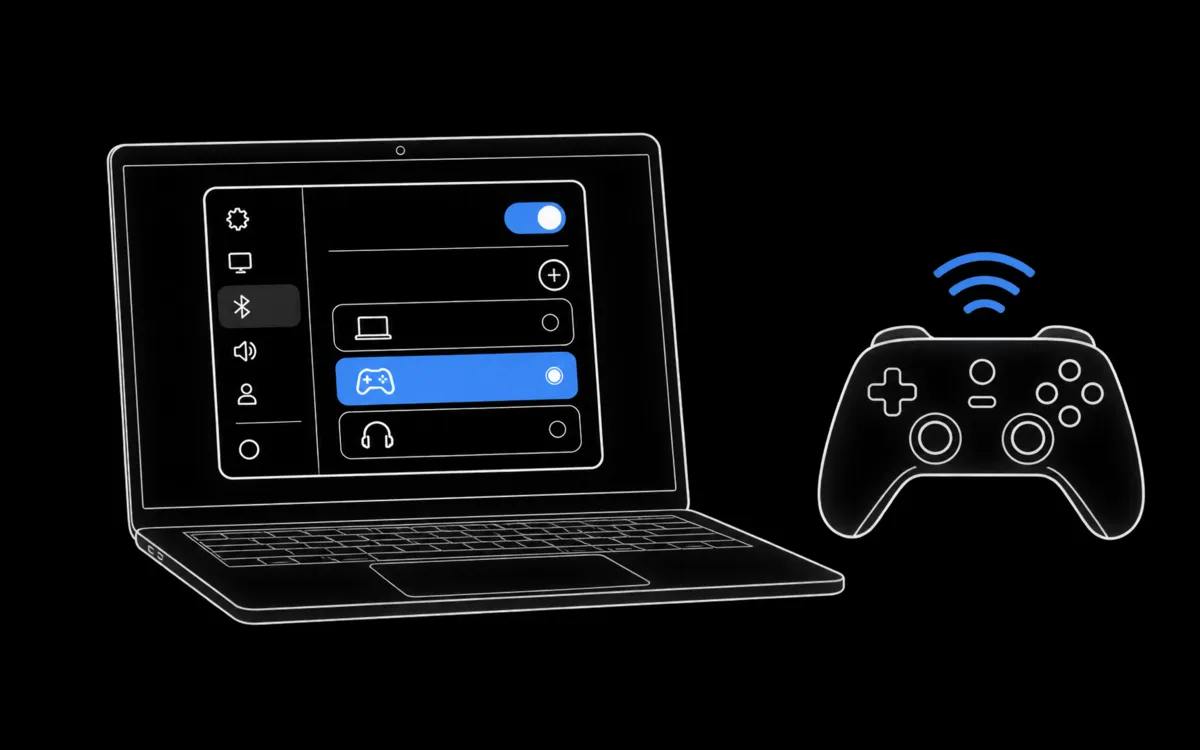
- Windows 11: Settings, Bluetooth & devices, Add device, Bluetooth.
- Windows 10: Settings, Devices, Bluetooth & other devices, Add Bluetooth or other device, Bluetooth.
- macOS: System Settings, Bluetooth, then select the controller.
PlayStation controllers usually appear as Wireless Controller or DualSense Wireless Controller. Select it; the light stops blinking when pairing is complete.
Method 3: USB receiver (2.4 GHz)
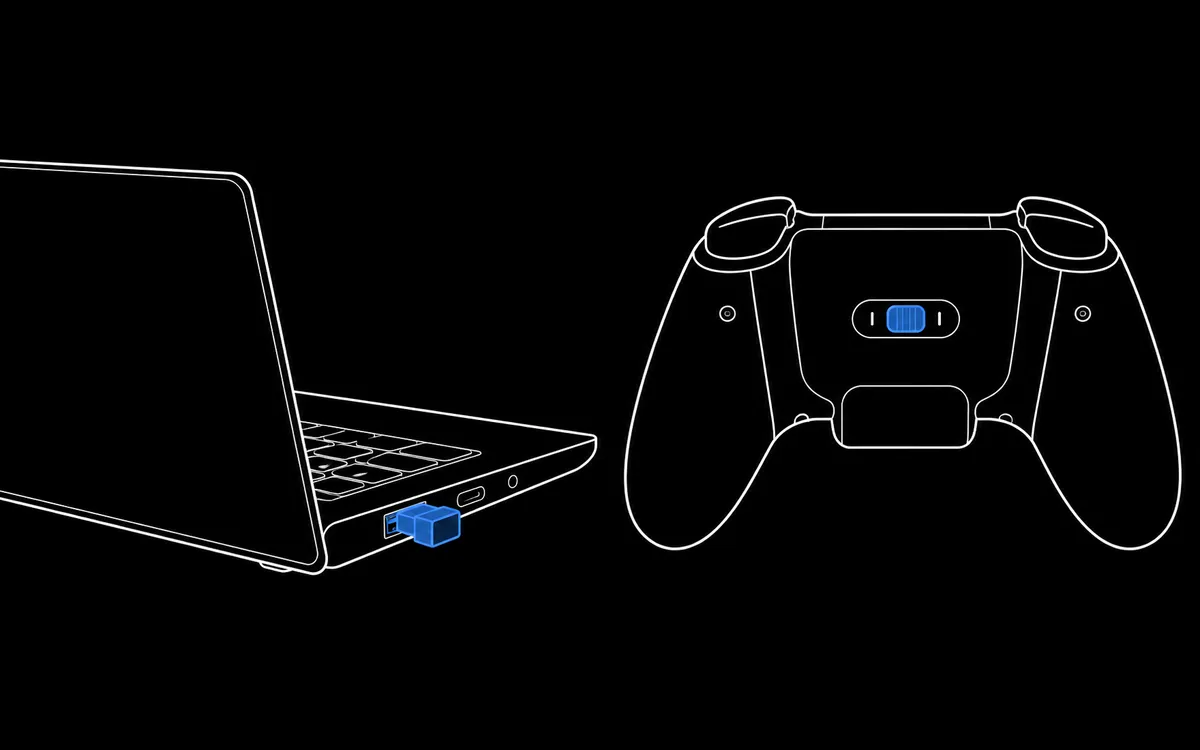
Step 1: plug in the receiver
Insert the small receiver that came with the controller. If the port is behind a desktop computer, a short USB extension cable puts the receiver closer to the controller and improves the signal.
Step 2: choose receiver mode on the controller
Many controllers support several modes. Depending on the model, a switch on the back, a button held while turning the controller on, or the companion app selects 2.4 GHz mode. Some modes also change how the controller identifies itself, so test in the mode you actually play with.
Final step for every method: press a button on this site
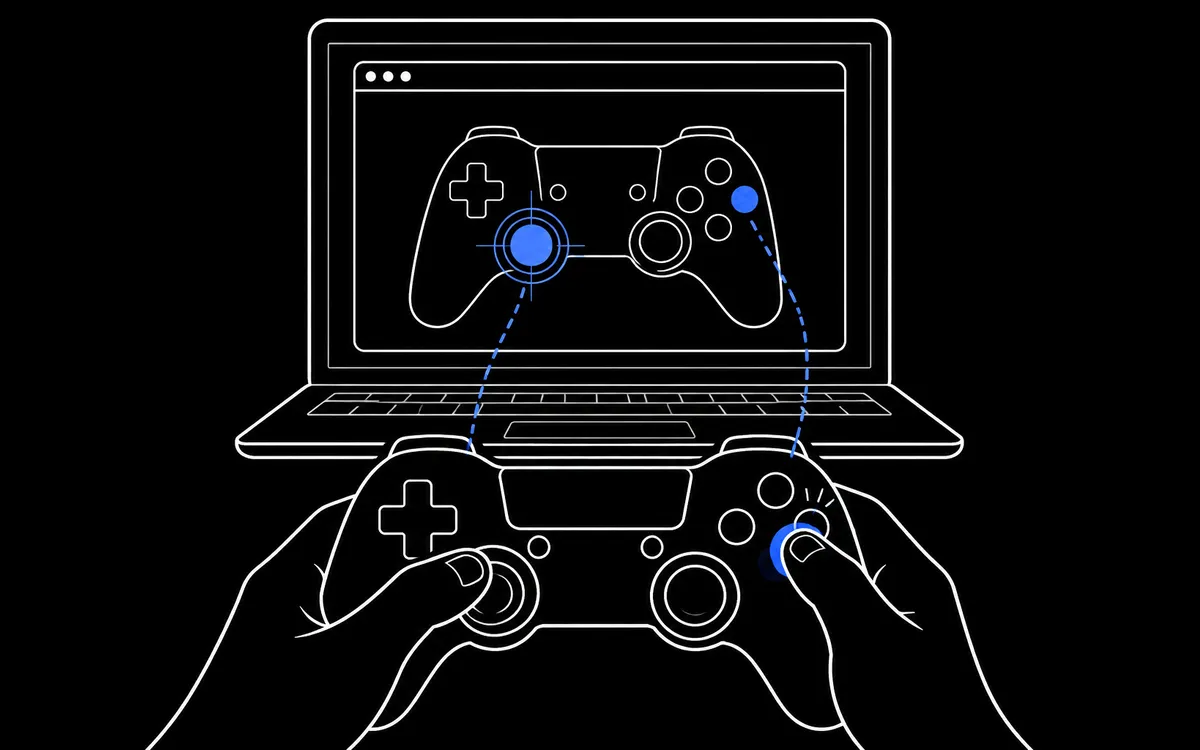
Open the ControllerTester home page or any test, keep the browser window in front, and press a face button or move a stick. Browsers keep controllers hidden until you interact with them, as a privacy protection. Once you press something, the controller name appears at the top of the test bench and the diagram lights up as you press.
If nothing happens
- Press a button again with the browser window focused.
- Try another data cable and another USB port.
- Remove the old Bluetooth pairing and pair again.
- Close Steam and controller mapping tools, which can take over the controller.
- Try another browser.
Still stuck? The controller not detected guide covers drivers, permissions and the remaining causes.
What to test first
Once the controller is connected, start with the button tester to confirm every input works, then the stick drift test. For model specific notes, see the PS5, PS4, Xbox and Switch Pro pages.
Sources
Checked 26 October 2026 against the manufacturers' current instructions.